

How to Generate Consistent Characters Using Image-to-Video in Kling 2.5
Creating consistent characters in AI-generated videos can be tricky — but with the right workflow, it’s surprisingly simple.
In this tutorial, we’ll walk through how to use Kling 2.5’s image-to-video feature to anchor characters from a reference image, combine it with a straightforward prompt, and end up with realistic, physics-aware short clips. Best of all, this requires no coding — just thoughtful input selection on Fal.ai.
Video Tutorial below for the visual learners.
Step 1: Start With a Strong Base Image
The key to character consistency lies in the reference image. This is your anchor. For example, if you want Will Smith eating pasta (the litmus test of Gen AI videos), don’t just rely on a text prompt — start with a pre-existing image of him doing that action (AI-generated or sourced online).
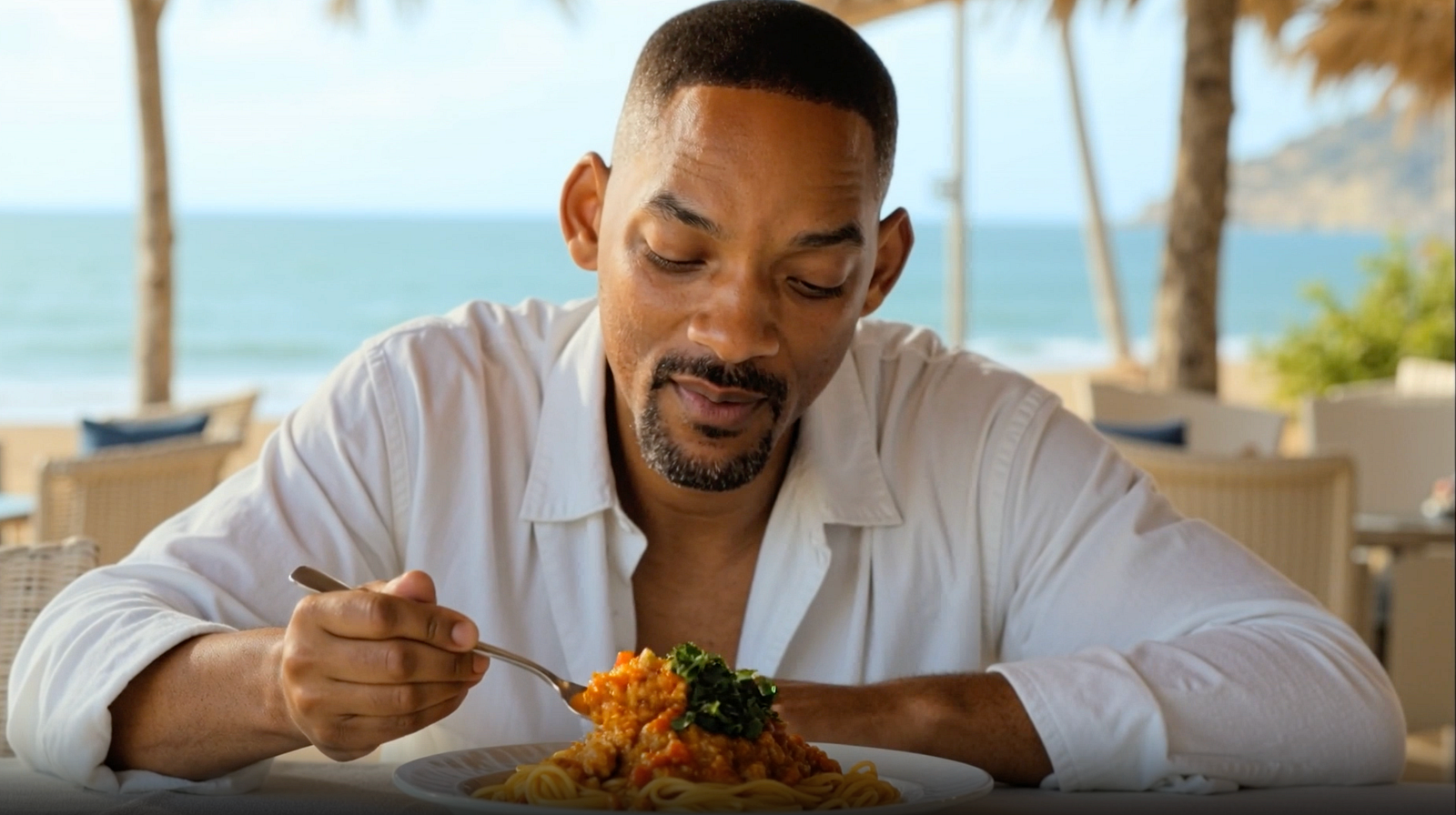
AI Will Smith eating pasta
Once you upload that image into Kling 2.5 and pair it with a matching prompt, you’ll see the video generator stay aligned with the character’s face, features, and context.
Step 2: Combine With a Simple, Complementary Prompt
The prompt doesn’t need to be complex. In fact, the simpler the better — just describe the action or environment you want while keeping it consistent with the base image.
For example:
Image: Will Smith eating pasta
Prompt: “Will Smith eating pasta bolognese.”
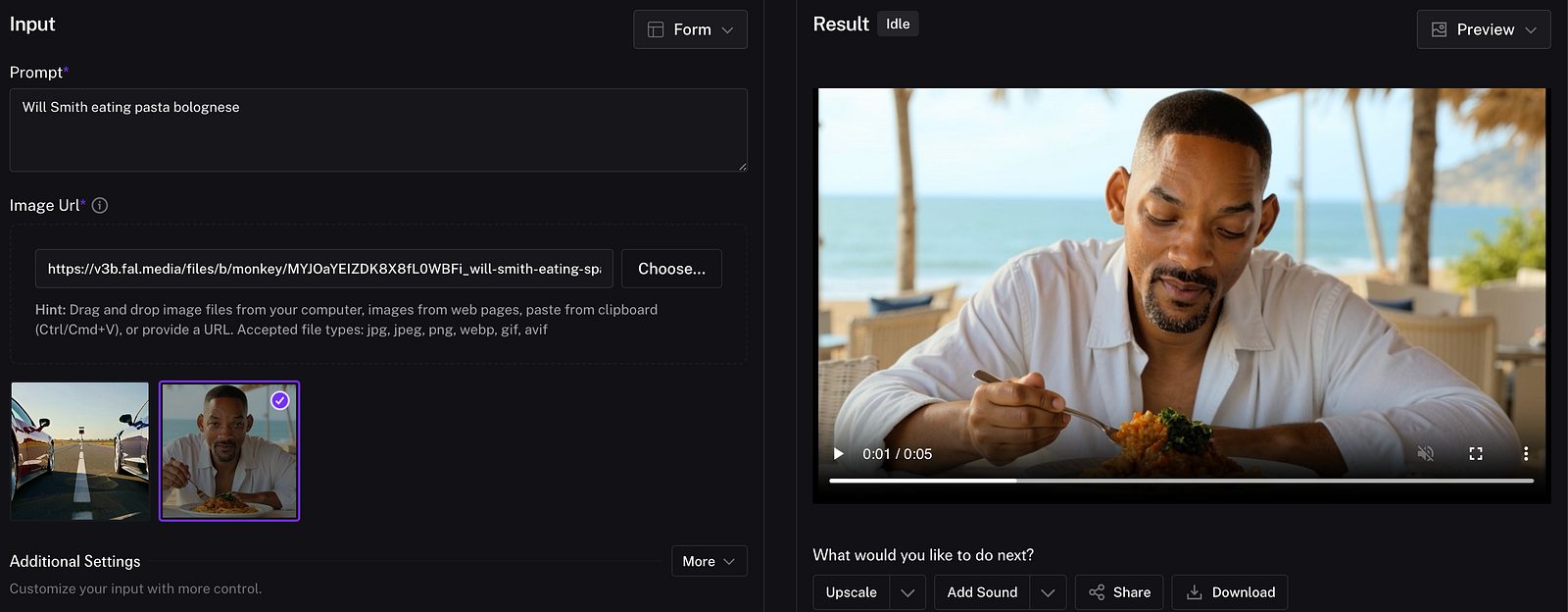
This keeps the model grounded in both visual and textual context.
Step 3: Test With Multi-Character Scenes
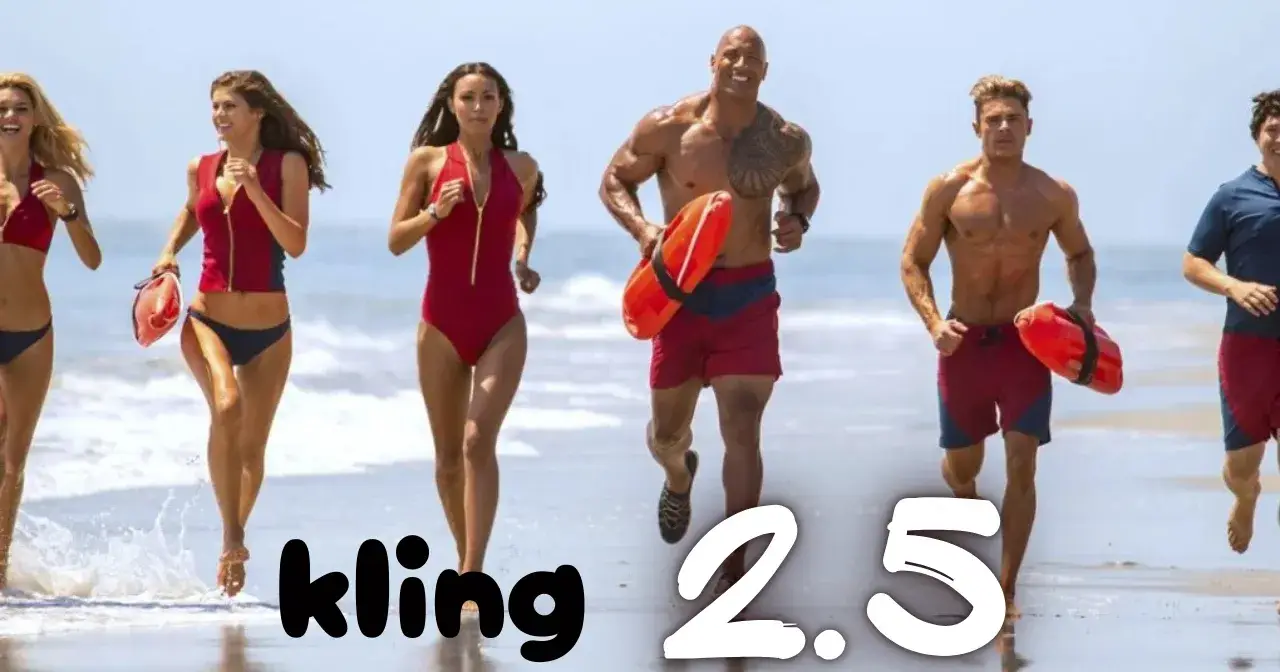
Want to see how Kling handles groups? Try sourcing an image with multiple people, such as a Baywatch-style beach photo, then pair it with a dynamic prompt:
“Coast guard running along the coastline on a sunny day with waves crashing behind them.”
Kling 2.5 not only respects the characters from the input image but also generates natural physics — running motions, wave patterns, and sunlight reflections that look cinematic. Small quirks (like hand or foot distortions) may still occur, but overall motion remains consistent.
Step 4: Enhance With Upscaling and Sound
Once you’ve generated your base 5-second video, you can refine it:
Upscale: Improve resolution if the output feels grainy.
Add Sound: Use an external tool to overlay contextually appropriate audio — waves, background chatter, or ambient music — to make the clip more immersive.
These small touches transform raw AI footage into something production-ready.
Step 5: Experiment With Duration (But Watch for Artifacts)
By default, videos are short (around 5 seconds), but you can extend them up to 10 seconds. Keep in mind that the longer the sequence, the more likely the model may introduce inconsistencies. Still, with careful base images and prompts, even extended clips can stay impressively coherent.
Conclusion
Generating consistent characters with Kling 2.5 boils down to two essentials: start with a solid reference image and pair it with a simple, realistic prompt. From there, you can build short, cinematic clips that respect character likeness, maintain believable physics, and even scale with sound and resolution upgrades.
As the models improve, we’re getting closer to true AI filmmaking. For now, this workflow is a powerful way to anchor characters in your creative projects without coding or heavy post-production.
👉 Want to take it one step further? Automate the entire process — from Kling 2.5 video generation to posting directly on YouTube — with my ready-to-use n8n workflow. Get it here: https://arinakos.gumroad.com/l/n8n-kling-25-post-2-yt
Join Ari on Peerlist!
Join amazing folks like Ari and thousands of other builders on Peerlist.
0
6
0