

6 Ways to Export Claude Chat Without Losing Formatting
Learn 6 easy ways to export Claude chat without losing formatting. Save your Claude conversations to PDF, Word, or Notion seamlessly.

Lately I've been using Claude quite a lot. But the problem is that whenever I need to take the content out to save or share with others, the formatting gets lost — especially tables and code blocks.
So I sat down and figured out various ways to export claude chat, and this post is sharing those methods for anyone dealing with the same issue.
Method 1: Use an Extension
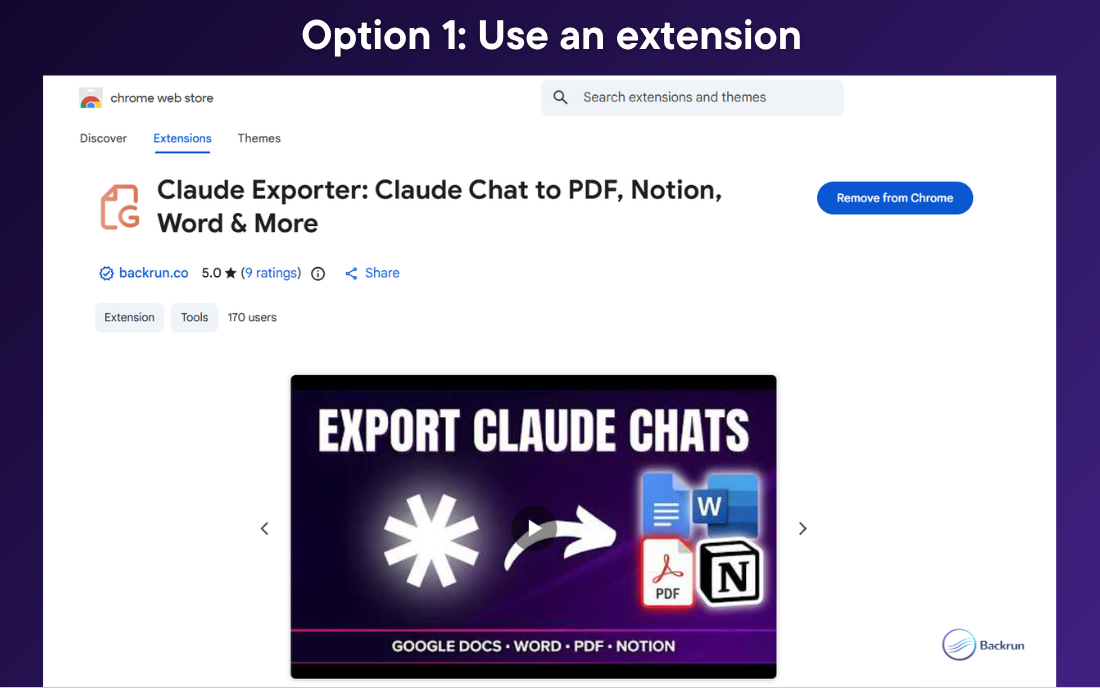
How to:
Install a conversation export extension for Claude from the Chrome Web Store (e.g. Claude Exporter as shown in the screenshot, or similar extensions — just search on the Chrome Web Store)
Open the chat you want to save in Claude
Choose your export format: PDF, Word, Google Docs, or Notion
Hit export and you're done
This is my most recommended method because it's fast, preserves formatting really well, and even lets you export only part of a conversation instead of having to grab everything. It's currently the cleanest way to export claude chat directly into your workflow.
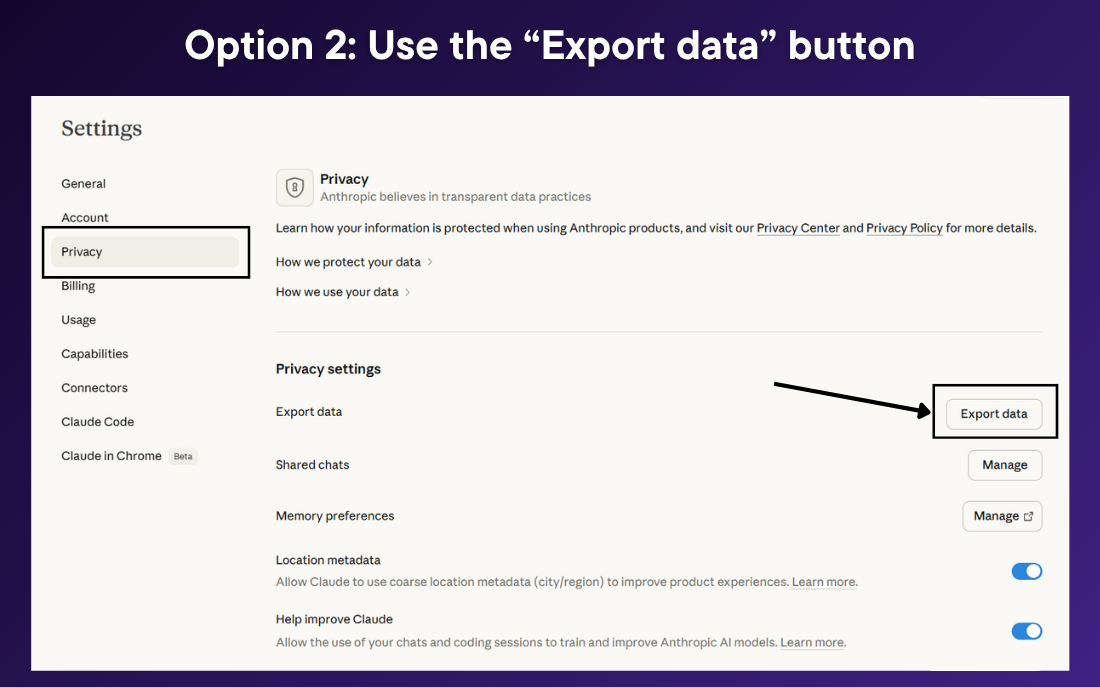
Method 2: Use Claude's Official Export Data Button
How to:
Log in to Claude, click your avatar in the bottom-left corner
Go to Settings → Privacy → click Export Data
Anthropic sends a download link to your email within a few minutes
Download the ZIP file — it contains your entire conversation history
Pros: Official from Anthropic, backs up your entire history all at once.
Cons: The returned file is in JSON format, which is a bit hard to read. Also note that this method doesn't work on the iOS/Android app.
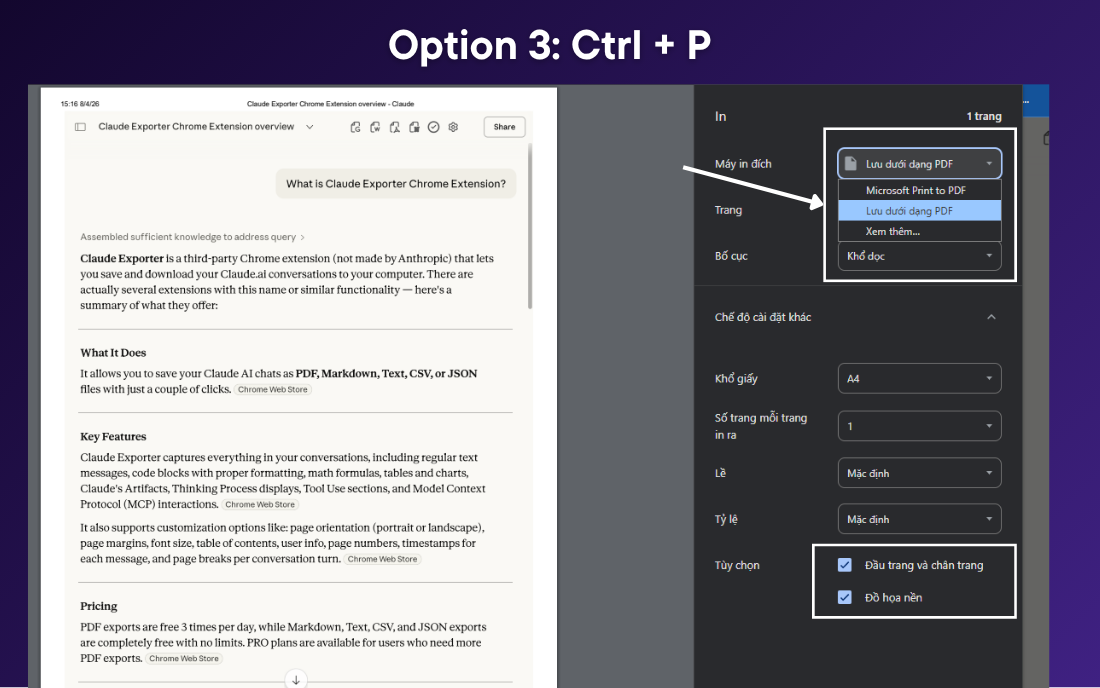
Method 3: Print to PDF Manually
How to:
Open the conversation on claude.ai
Press
Ctrl+PorCmd+PChoose to save as PDF (you can turn off the header and footer options)
Save to your device
Pros: Quick to save, no extra installs needed to export claude chat.
Cons: Captures the web interface layout, and long code blocks tend to get cut off mid-page.
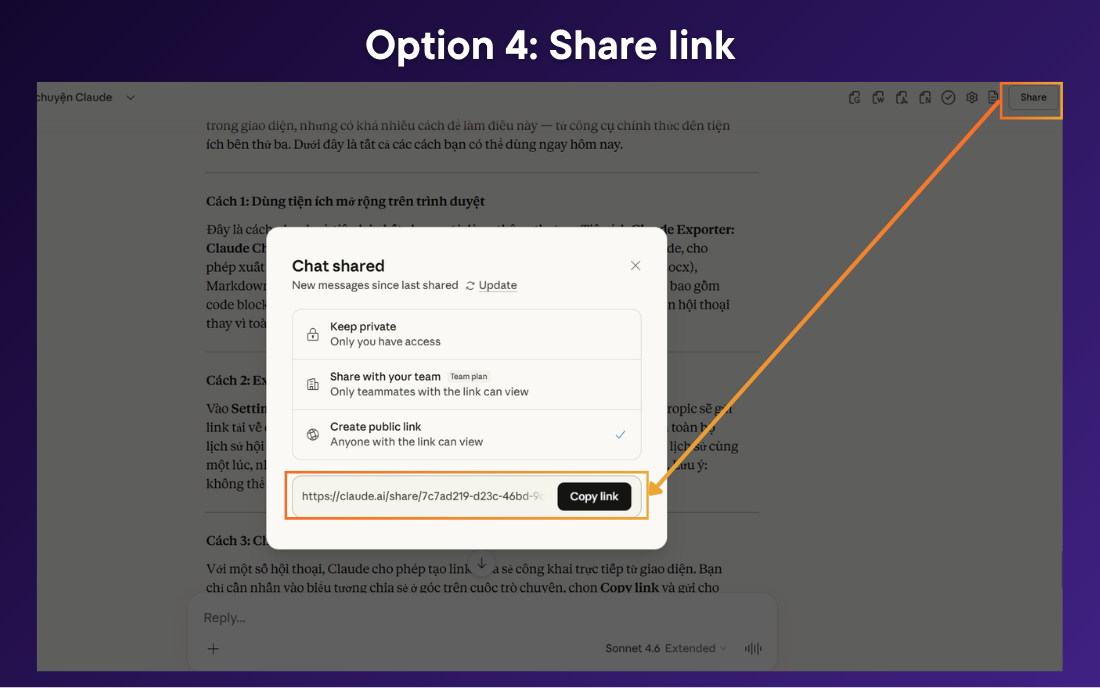
Method 4: Create a Share Link
How to:
Open the conversation you want to share
Click the Share button in the top-right corner
Claude generates a public link
Copy the link and send it to others
Great for quickly sharing with others. However, it's read-only and can't be saved offline.
Method 5: Manual Copy-Paste
How to:
Select the content in Claude and copy it
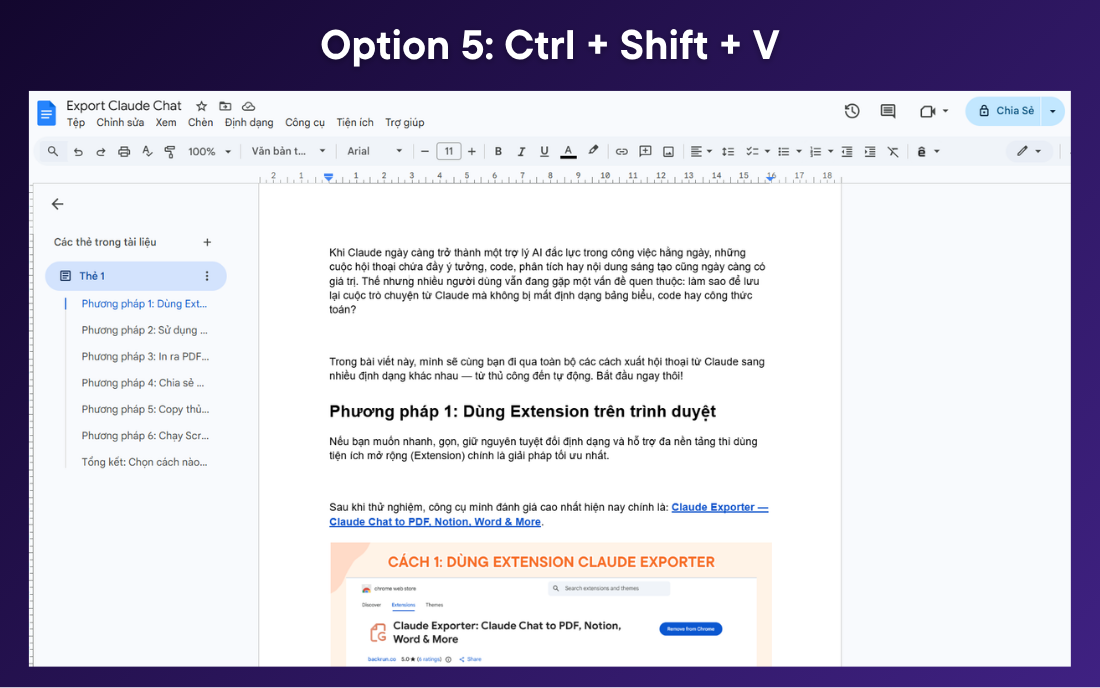
Paste into Word or Google Docs using
Ctrl+Shift+VorCmd+Shift+V
Easy to do, anyone can figure it out right away. However, tables and bold text will lose all formatting after pasting.
Method 6: Run a Script via Browser Console (for technical users)
How to:
Open the conversation in Claude
Press
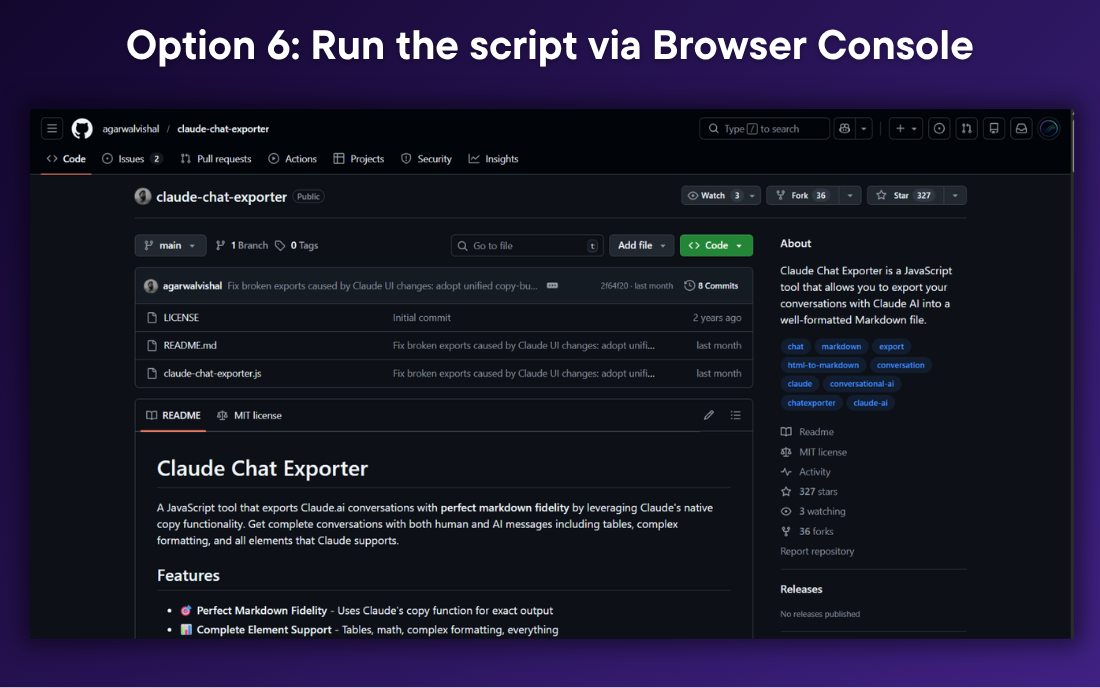
F12to open Developer Tools, switch to the Console tabPaste the script from
github/agarwalvishal/claude-chat-exporterand press Enter
No extension needed, high-quality Markdown output, preserves code blocks and tables. The downside to this way to export claude chat is that it requires familiarity with Developer Tools and isn't suitable for everyday users.
I'm curious — does anyone on Peerlist have an even simpler way to save output from Claude? Share it in the comments below.

Join Quy on Peerlist!
Join amazing folks like Quy and thousands of other builders on Peerlist.
0
4
2