

6 Ways to Export ChatGPT Conversations Without Losing Your Formatting (2026 Guide)
The complete guide to export ChatGPT conversation without breaking your tables, code blocks, or formatting

I almost submitted a client report with broken tables and scrambled code blocks.
I had spent the better part of a morning using ChatGPT to draft a structured technical breakdown — complete with comparison tables, code snippets, and step-by-step instructions. When I pasted it into Word to clean it up, the tables collapsed into flat text. The code blocks merged with the paragraphs around them. Bold text vanished. What was once a clean, organized output looked like a rough first draft from 2009.
That was the moment I realized I had no idea how to properly export a ChatGPT conversation — and that copy-pasting wasn't it.
That frustration sent me down a rabbit hole to find every viable method for exporting ChatGPT conversations. Here's everything that actually works — and what each method costs you in time, fidelity, and effort.
Why Export ChatGPT Conversation Is Trickier Than It Should Be
The core problem isn't ChatGPT. It's the gap between how a browser renders structured content and how document editors expect to receive it.
Every time you try to export a ChatGPT conversation, you're not moving plain text — you're moving structured objects: code blocks with syntax highlighting, tables with cell alignment, math expressions rendered inline. When you copy and paste these into Word or Google Docs, the browser strips that structure and hands your editor raw, unstyled characters.
The result is always the same: broken tables, flattened code, formatting you now have to rebuild manually. Understanding why saving ChatGPT chats fails so often is what helps you pick the right method from the start.
Method 1: Use a Dedicated Browser Extension to Export ChatGPT Conversation (Recommended)
If you need your ChatGPT conversation export to look exactly like what you see in the browser — tables intact, code blocks clean, formulas readable — a dedicated Chrome extension is the only method that reliably delivers this.
The one worth installing is "ChatGPT Exporter: Save ChatGPT to Word, PDF, Docs, Notion"
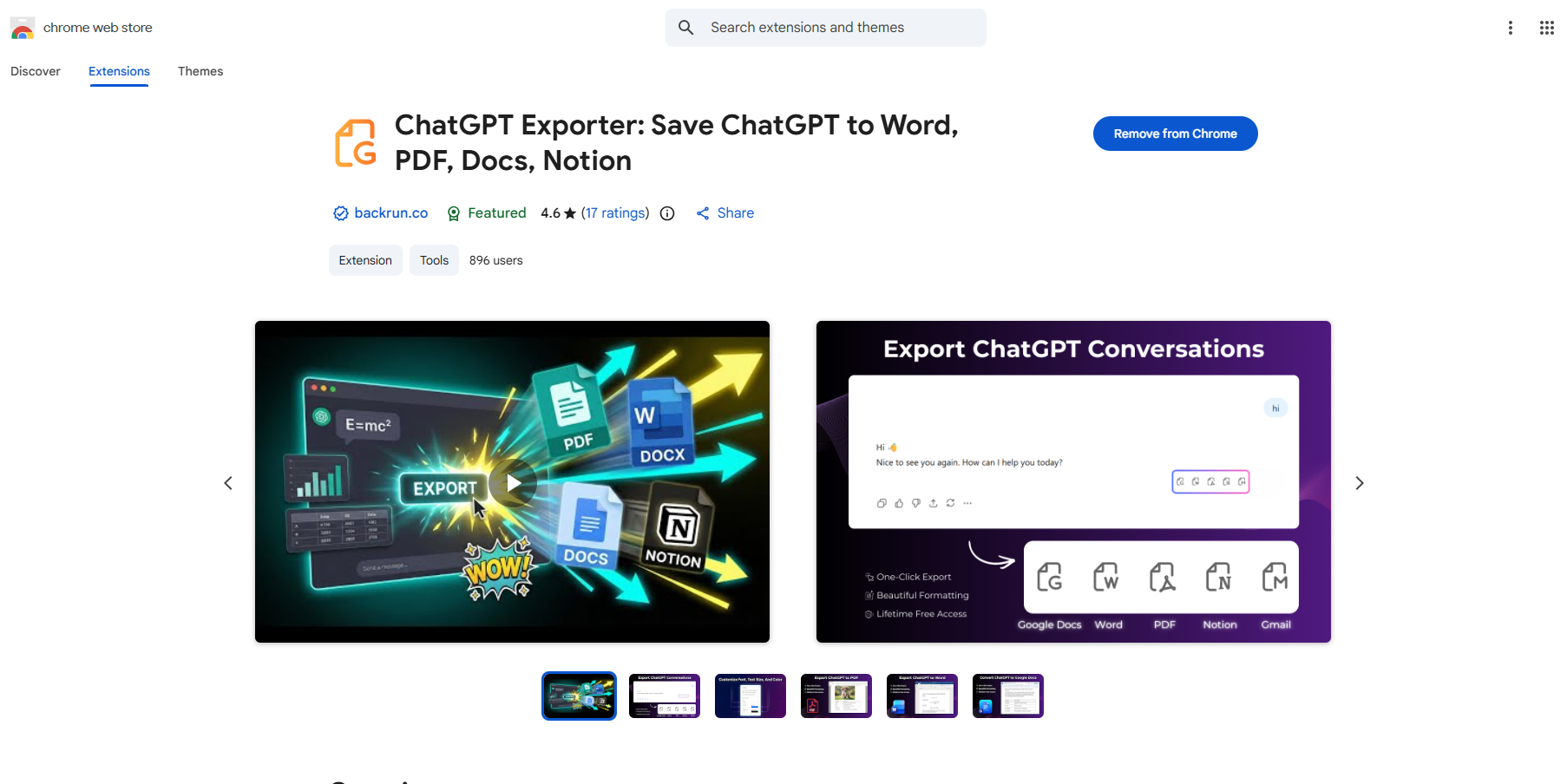
What makes it stand out from every other way to download ChatGPT conversations:
Multi-destination export — PDF, Word, Google Docs, Notion, and Gmail in a single tool. Most alternatives lock you into one format.
Full formatting preservation — code blocks, tables, images, and mathematical formulas survive the export intact.
Pre-export customization — adjust font, font size, and text color before the file is generated. You arrive at your destination already styled.
The workflow: install from the Chrome Web Store, open any ChatGPT conversation, click the extension icon, choose your format, hit Export. A 20-minute reformatting job becomes a single click.
Best for: Anyone using ChatGPT regularly for research, technical writing, or documentation.
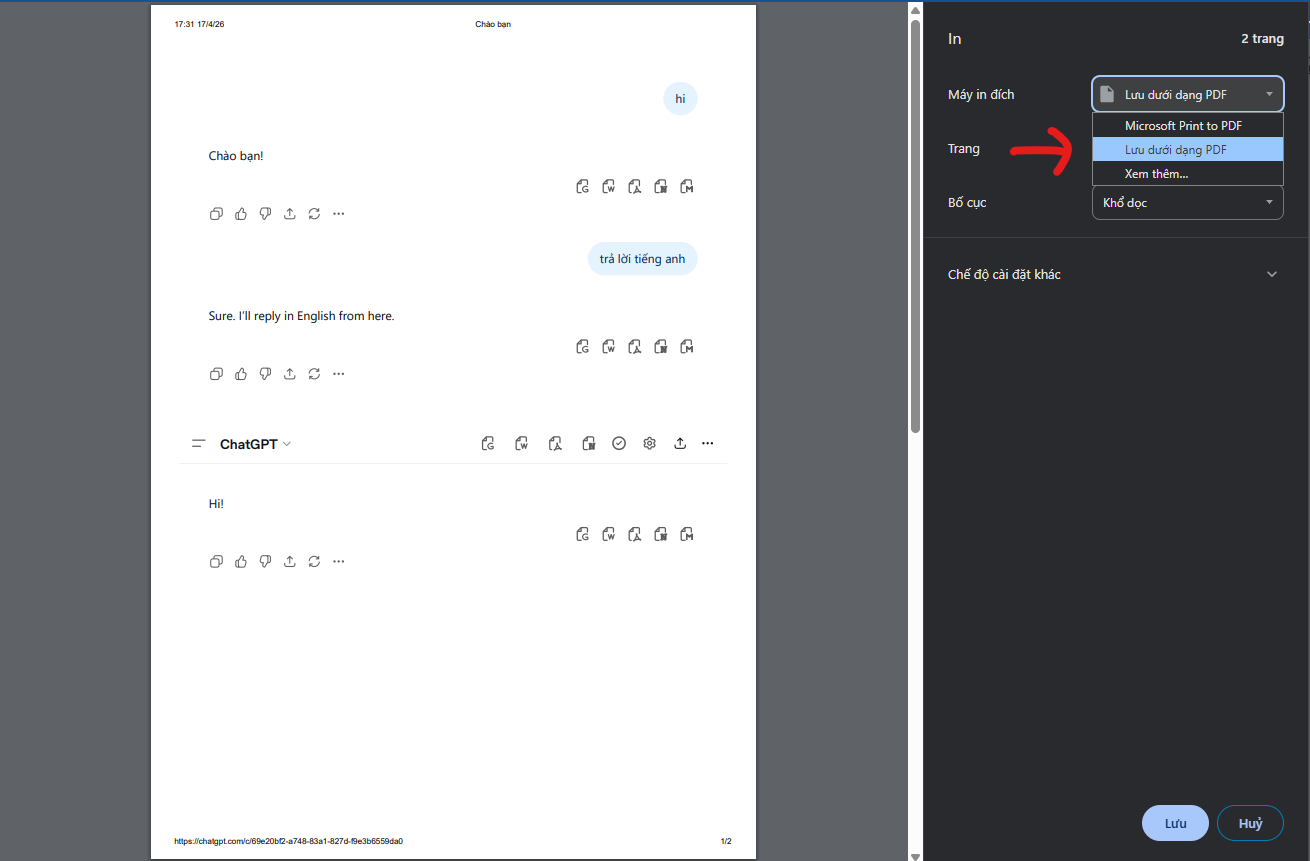
Method 2: Print to PDF — The Fastest Way to Export ChatGPT Chat
No extension, no setup. Open the conversation, hit Ctrl+P (or Cmd+P on Mac), select Save as PDF, set margins to minimum, and save.
This is the most common fallback when people need to export ChatGPT conversation to PDF quickly — and it does work, with caveats. The output is a web page printout: browser chrome, input boxes, and navigation bars included. Long code blocks get sliced at page breaks. Tables render unpredictably.
If you need to save a ChatGPT chat for personal reference only, this is fine. If you're sharing it with anyone else, it's not.
Best for: Quick personal snapshots. Not for anything formal or collaborative.
Method 3: OpenAI's Official Export Feature — Bulk Export ChatGPT Conversation History
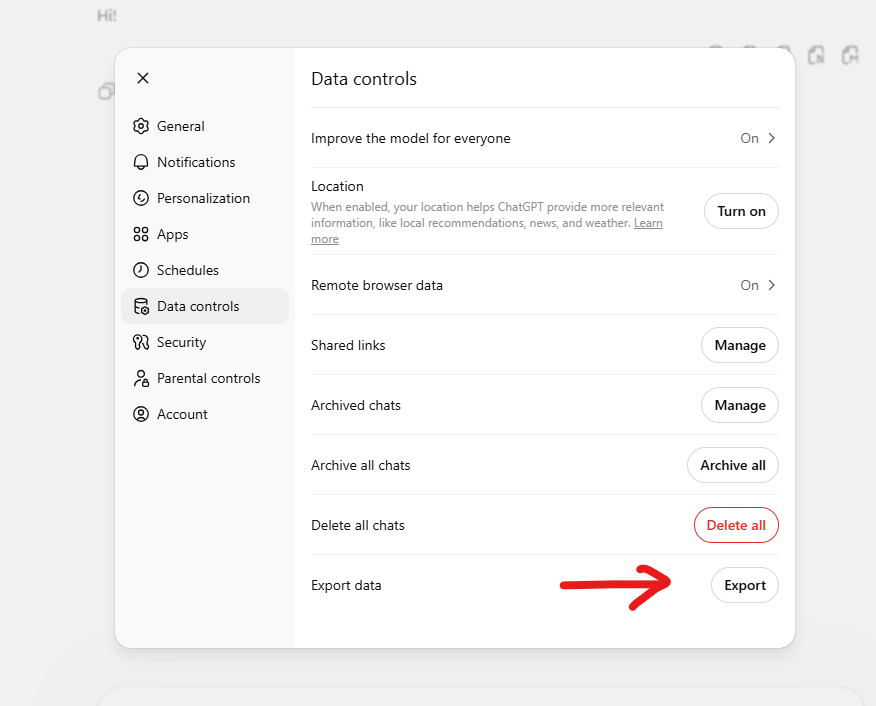
OpenAI baked a bulk export function directly into ChatGPT's settings. It's the only native way to export your entire ChatGPT conversation history in one action.
To access it: Profile icon → Settings → Data Controls → Export Data → Export. OpenAI emails you a confirmation link. A few hours later, you download a .zip file containing a conversations.json file with every chat you've ever had.
The data is complete — but raw. You'll need a JSON parser, a custom script, or a third-party converter to turn it into something readable. This isn't a day-to-day ChatGPT export workflow. It's a backup and archival tool.
Best for: Developers, data audits, and account migrations. Not for grabbing a single report to send to a colleague.
Method 4: Share a Link — Export ChatGPT Conversation Without a File
Sometimes the goal isn't to export ChatGPT conversation to a document at all. You just need to show someone a conversation.
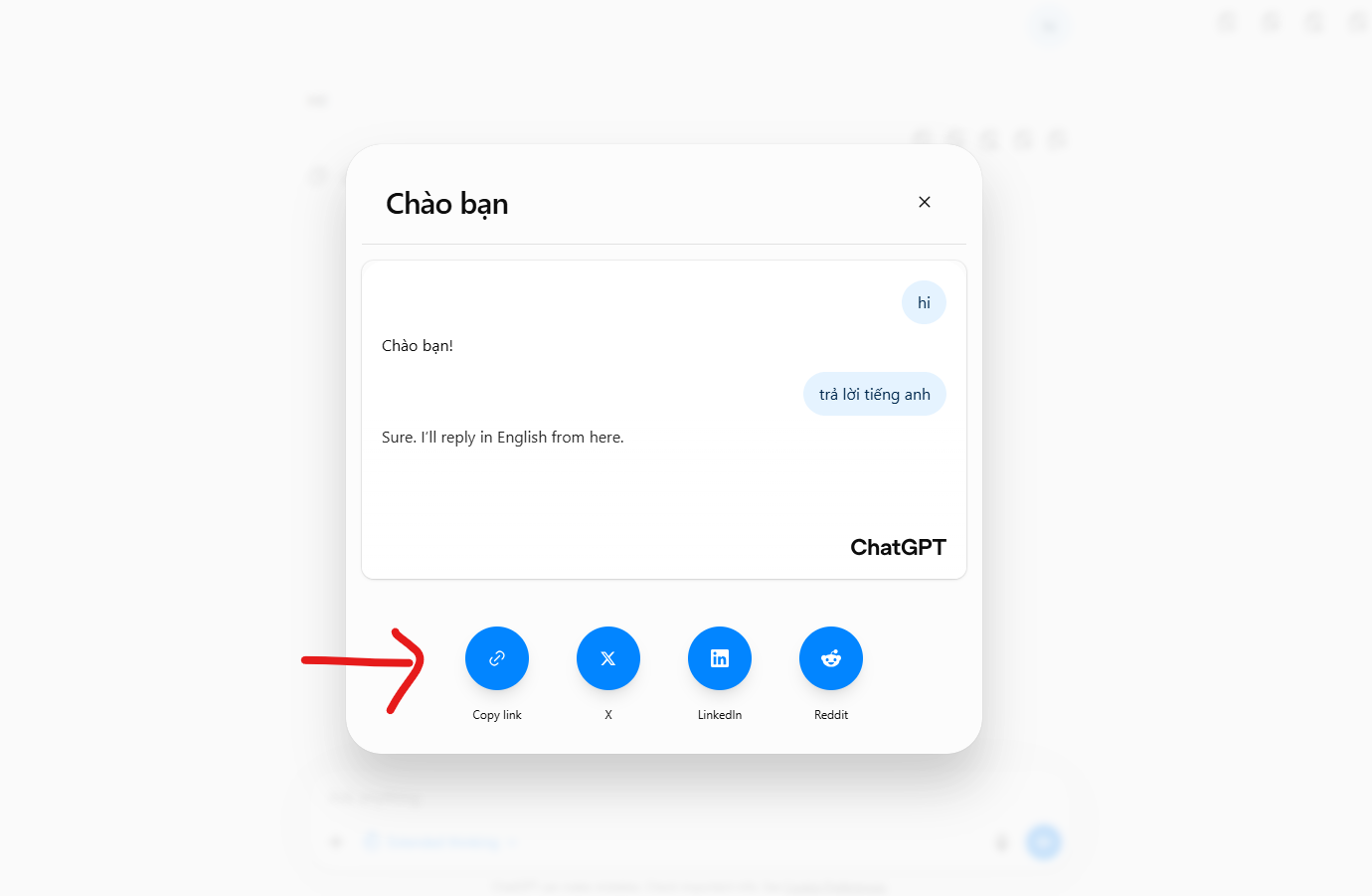
ChatGPT's native Share function generates a public, read-only URL for any conversation. Click the share icon at the top of the interface, hit Create Link, copy, send. The recipient sees the full exported ChatGPT chat — fully formatted — in their browser. No file attachment, no download required.
Best for: Quick team reviews, dropping a reference into Slack, or sharing AI-assisted research with a collaborator on the fly.
Limitation: View-only. Not a file you own. For anything you need to store long-term, this isn't a substitute for a proper ChatGPT conversation export.
Method 5: Copy-Paste — The Manual Way to Save ChatGPT Conversation
This is what most people try first when they want to export a ChatGPT conversation without any tools. There's a correct technique, and it still has a meaningful trade-off.
Pasting directly from ChatGPT into Word or Google Docs drags in dark backgrounds, misaligned rows, and browser-specific artifacts. The fix is paste without formatting:
Windows:
Ctrl + Shift + VMac:
Cmd + Shift + VIn Word: Right-click → Keep Text Only
This strips ChatGPT's web styling and gives you clean text — but "clean" means plain. Tables become unseparated lines. Code blocks lose their structure. If you need to export ChatGPT chat with any structural content intact, this method trades one problem for another.
Best for: Fallback only. Works well for prose-heavy conversations with no tables or code.
Method 6: Open-Source Tools — Developer-Grade ChatGPT Conversation Export
If you want full control over your ChatGPT export format and don't mind a technical setup, the open-source community has you covered.
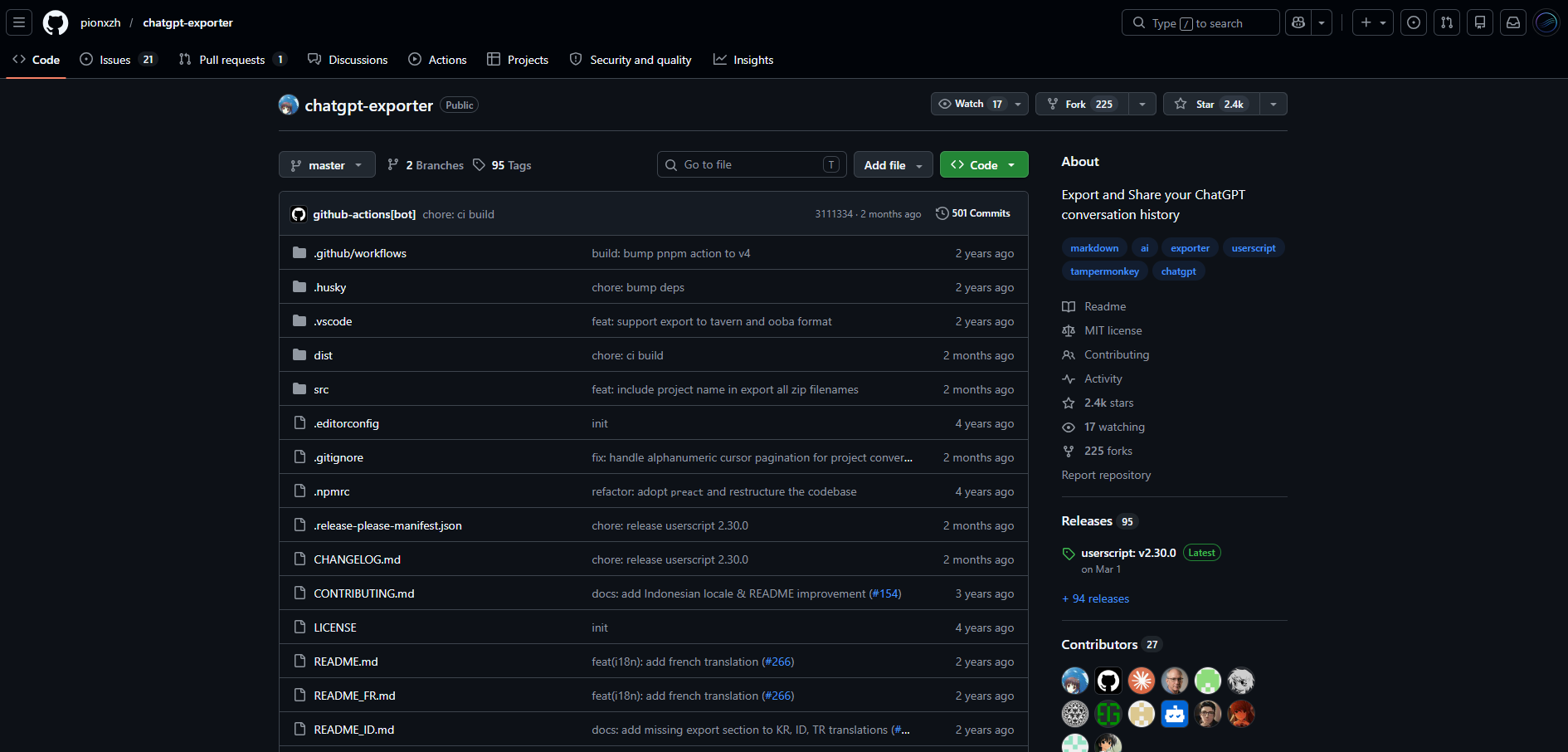
The repo pionxzh/chatgpt-exporter on GitHub lets you export ChatGPT conversations directly to clean Markdown (.md) or structured JSON — formats that pipe directly into Obsidian, Notion via API, or any documentation pipeline you're already running. It's the best option for developers who need to save ChatGPT chat history in a format that integrates with a broader knowledge system.
Best for: Developers pushing chat content into GitHub repos, Obsidian vaults, or custom knowledge bases. Overkill for everyone else.
Which Method to Export ChatGPT Conversation Is Right for You?
If you need...Use this Formatting fully preservedExtension (Method 1)Single response in Google Docs, no installNative export button in ChatGPT UIA quick snapshot for yourselfPrint to PDF (Method 2)To show someone a conversation nowShare Link (Method 4)Bulk archive of all historyExport Data (Method 3)Dev-grade Markdown or JSON outputOpen-source exporter (Method 6)
For 90% of use cases, Method 1 is the only method worth building a habit around when you need to export ChatGPT conversations regularly. The others are situational — useful to know, not worth planning around.
The only mistake you can make is not setting up the right ChatGPT conversation export workflow before you actually need it.
If this was useful, follow for more practical AI workflow breakdowns — the day-to-day friction points that don't show up in product documentation.

Join Quy on Peerlist!
Join amazing folks like Quy and thousands of other builders on Peerlist.
0
9
3