

The Ultimate Guide to Export Gemini Chat in 2026 (Without Losing Formatting)
Learn the 6 best ways to export Gemini chat in 2026 without losing your formatting. Discover how to save tables, code blocks, and math formulas to Word or PDF effortlessly.

If you use Google Gemini for coding, research, or drafting documentation, you already know the ultimate frustration: you get a perfectly structured response, copy it, paste it into your document, and watch everything break.
Tables collapse into a mess. Code blocks lose their syntax highlighting. LaTeX math formulas turn into unreadable gibberish. You end up spending more time fixing the formatting than actually using the AI's output.
If you want to export Gemini chat efficiently without destroying your structured data, you need the right workflow. Here is a breakdown of the best methods available in 2026, ranked by how well they preserve your formatting.
1. The Best Overall: Gemini Exporter
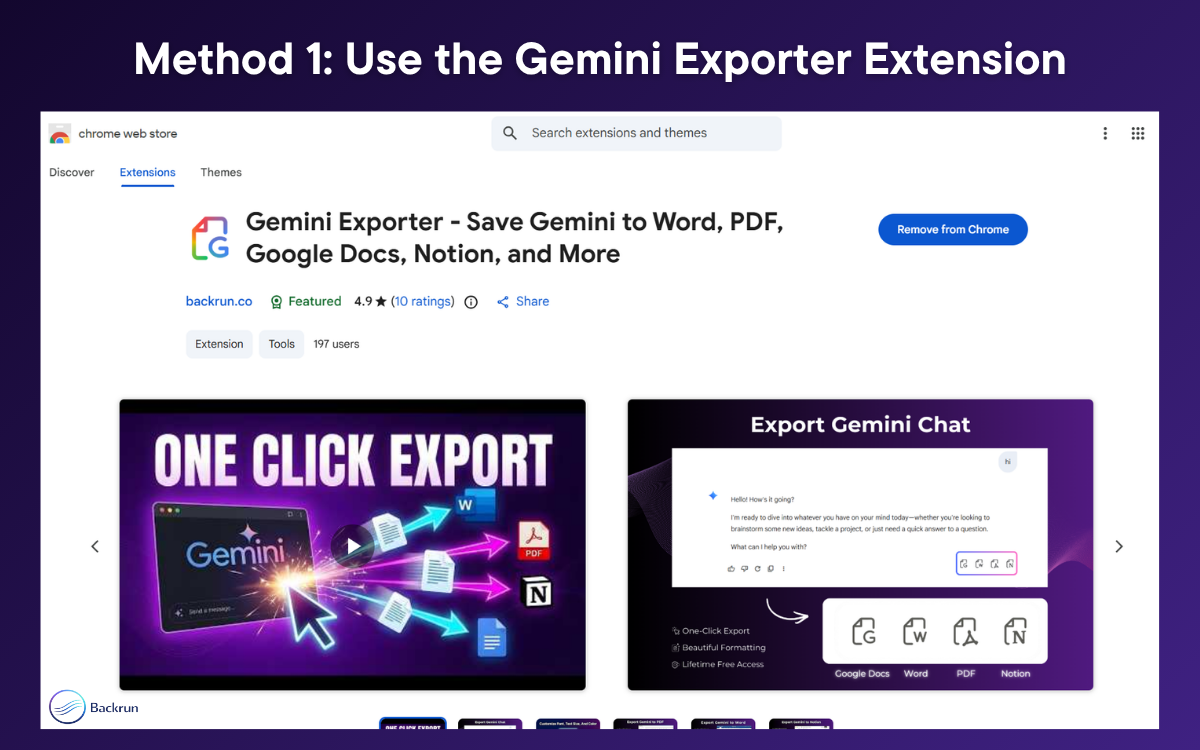
Best for: Developers, researchers, and professionals who need 100% formatting retention.
If your conversations include code, tables, headings, or math equations, the Gemini Exporter Chrome extension is the most complete solution right now. Instead of relying on your clipboard, it grabs the exact structure of the conversation and maps it natively to your destination format.
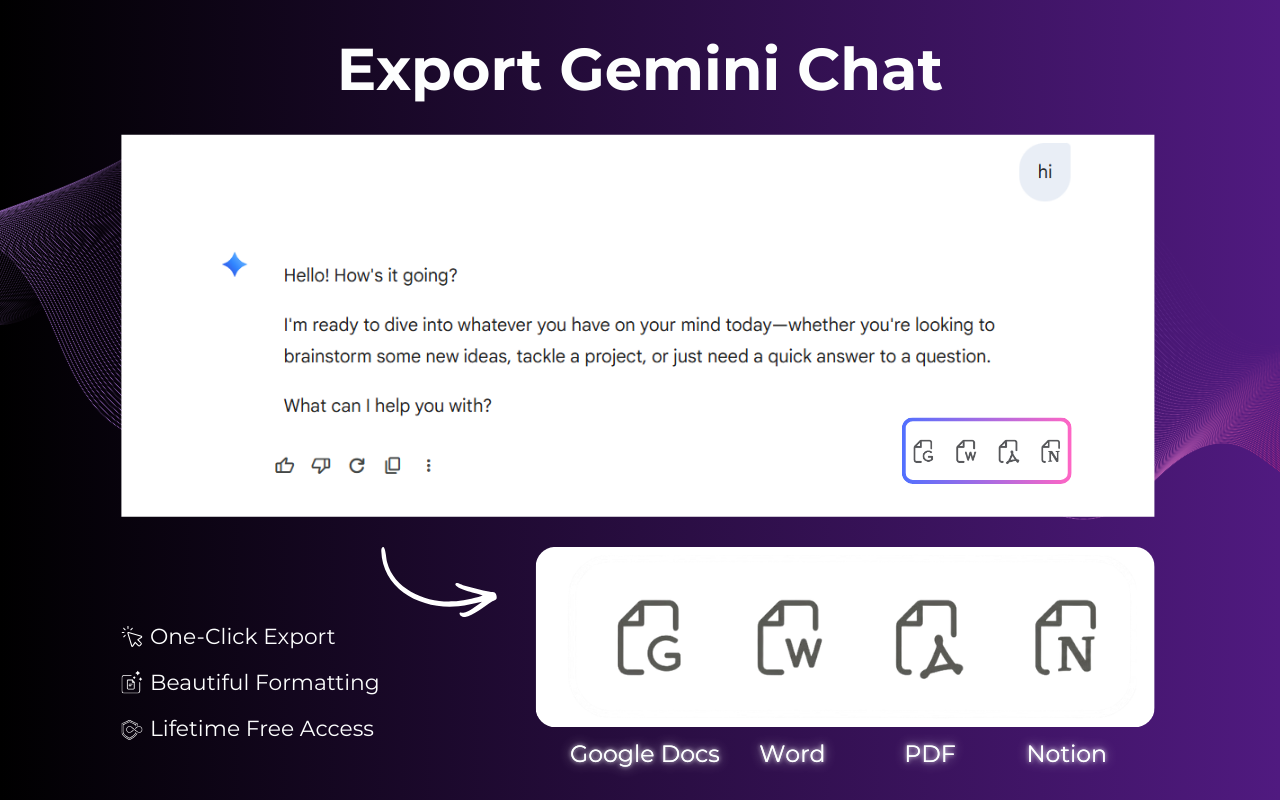
Why this is the top tier method:
Perfect Word (.docx) Export: It doesn't just paste text; it maps headings, tables, and bold text perfectly into Microsoft Word.
Native Math Support: It takes Gemini's LaTeX math equations and seamlessly converts them into Word's native equation objects.
Code Blocks Survive: Your code stays inside proper blocks, making it ideal for technical documentation.
Notion Integration: You can push specific chat selections directly into Notion via API, turning an AI chat straight into structured knowledge base blocks.
Privacy First: Unlike many web tools, all conversions are performed locally on your device. Zero data is sent to external servers.
>> See more features of Gemini Exporter.
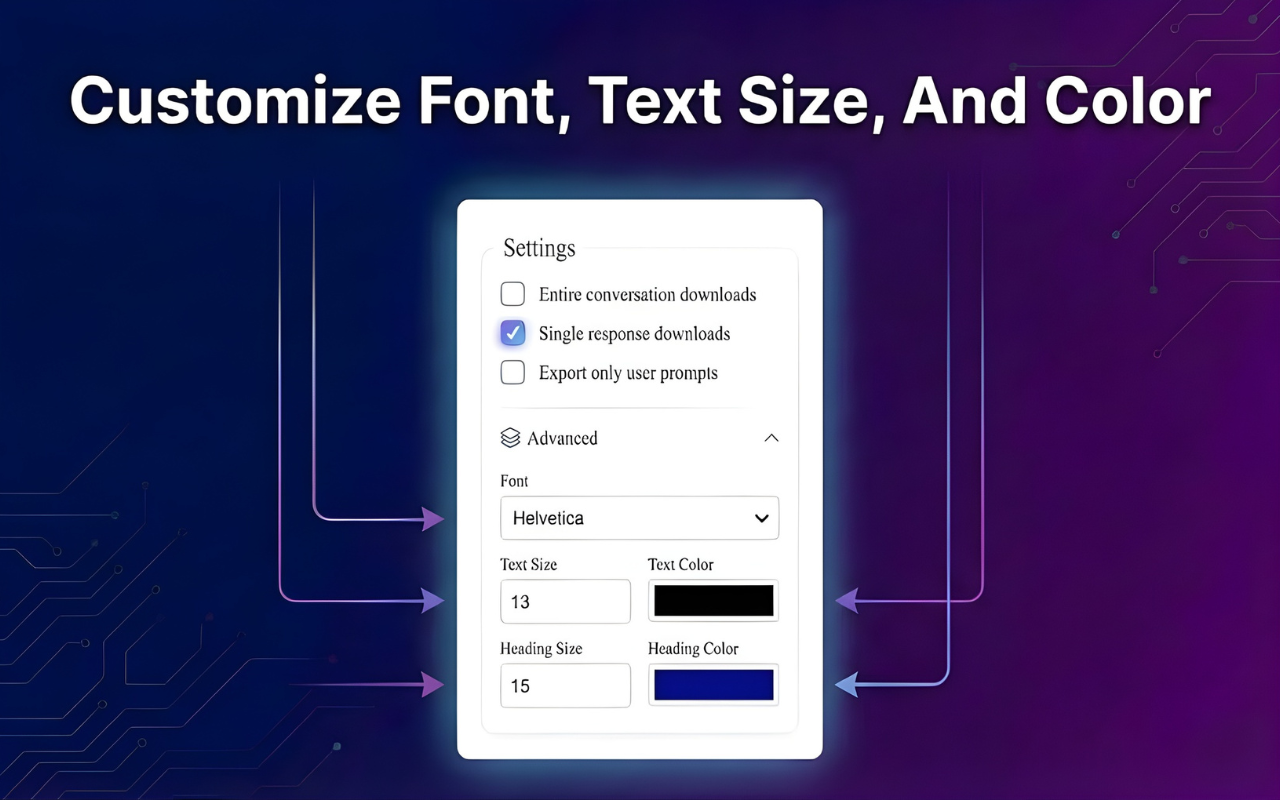
How to use it:
Install the extension from the Chrome Web Store.
Open the Gemini conversation you want to save.
Click the extension icon and choose to export full conversations or just select specific messages.
Choose your output (Word, PDF, Notion, etc.) and hit export. One click, zero cleanup.
Check out this quick YouTube demo video: https://www.youtube.com/watch?v=0wI3alERlmI
2. Google's Native Export Buttons
Best for: Quick, single-response saves inside the Google Workspace ecosystem.
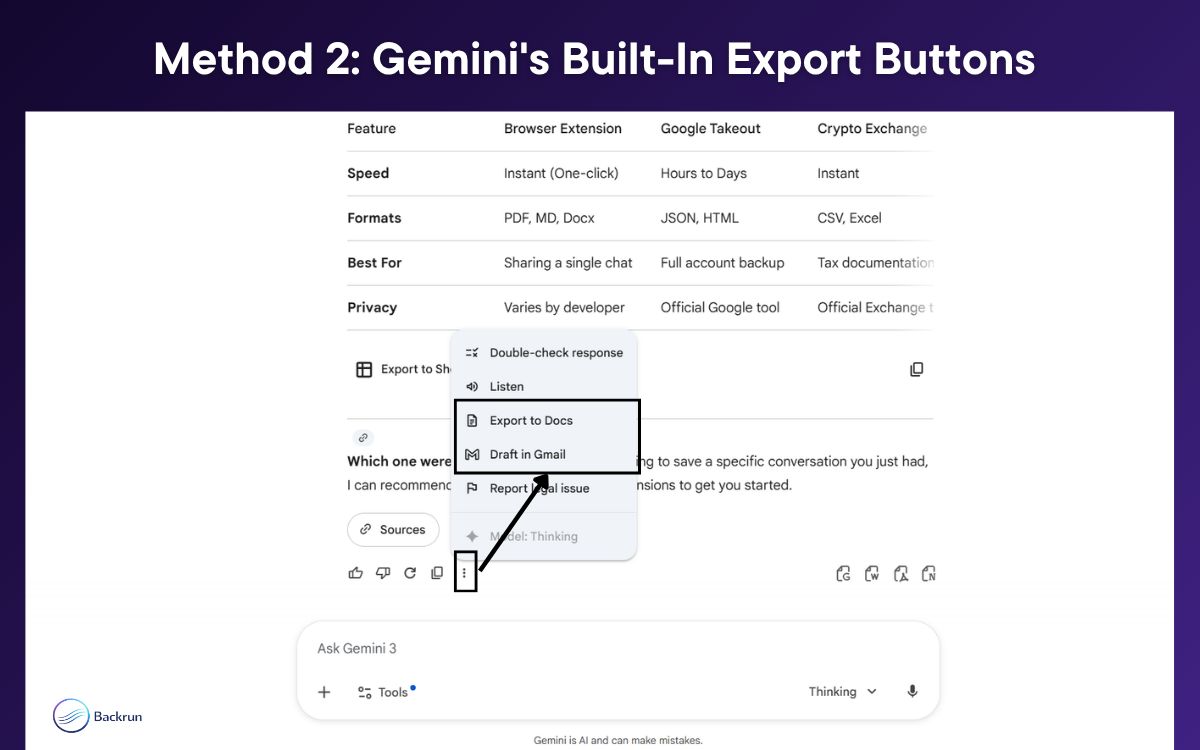
Google actually built basic export shortcuts right into the UI, though they are easy to miss. Beneath every Gemini response, you can click the three-dot menu to find two options: Export to Docs or Draft in Gmail.
This is completely frictionless and requires no setup. However, the limitations are strict:
It only works per-response. You cannot export an entire multi-turn Gemini chat in one go.
Complex tables sometimes misalign when pushed to Docs. It’s great for a quick email draft, but falls short for long research sessions.
3. Share a Public Link
Best for: Showing a colleague a specific output on Slack or Discord.
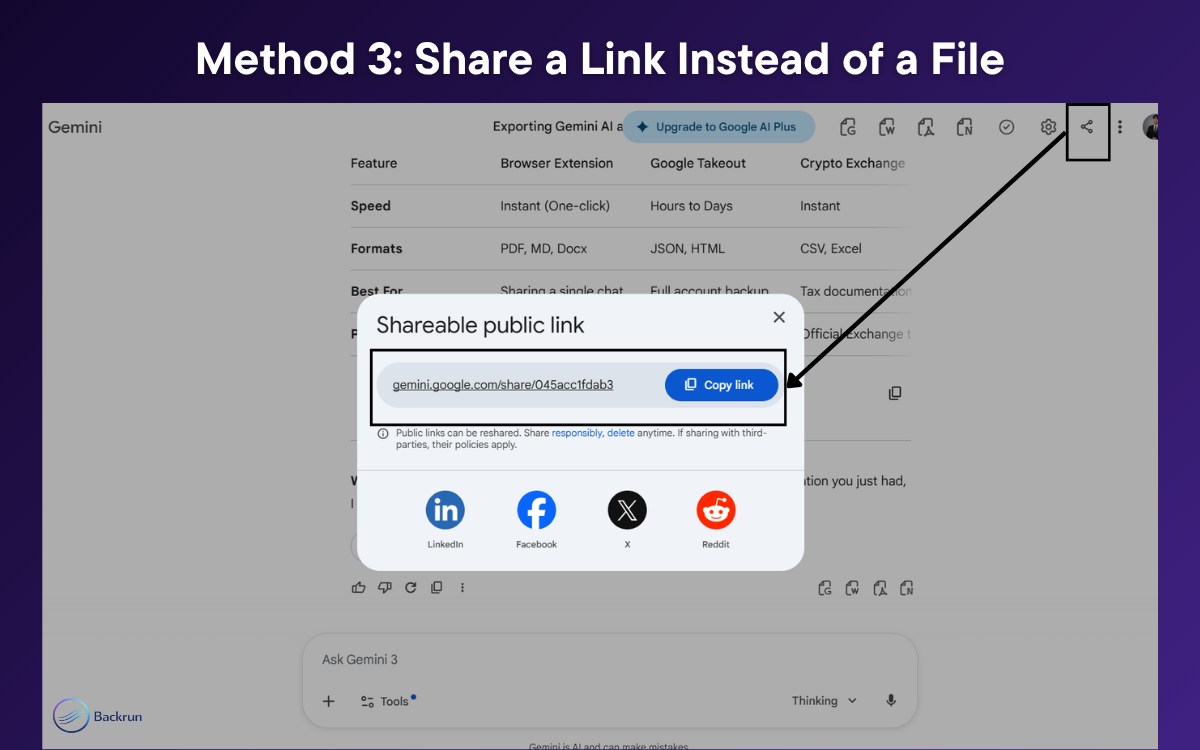
If you just need someone else to see the chat and don't actually need a file, use Gemini's built-in "Share" icon (top-right of the chat). It generates a public, read-only URL.
The recipient sees the full conversation with perfect formatting, and they don't even need a Google account. Just remember: this isn't a storage solution. You don't control the file, and Google doesn't guarantee these links will stay live forever.
4. The Plain Text Paste (Ctrl+Shift+V)
Best for: Pure text conversations with zero structured elements.
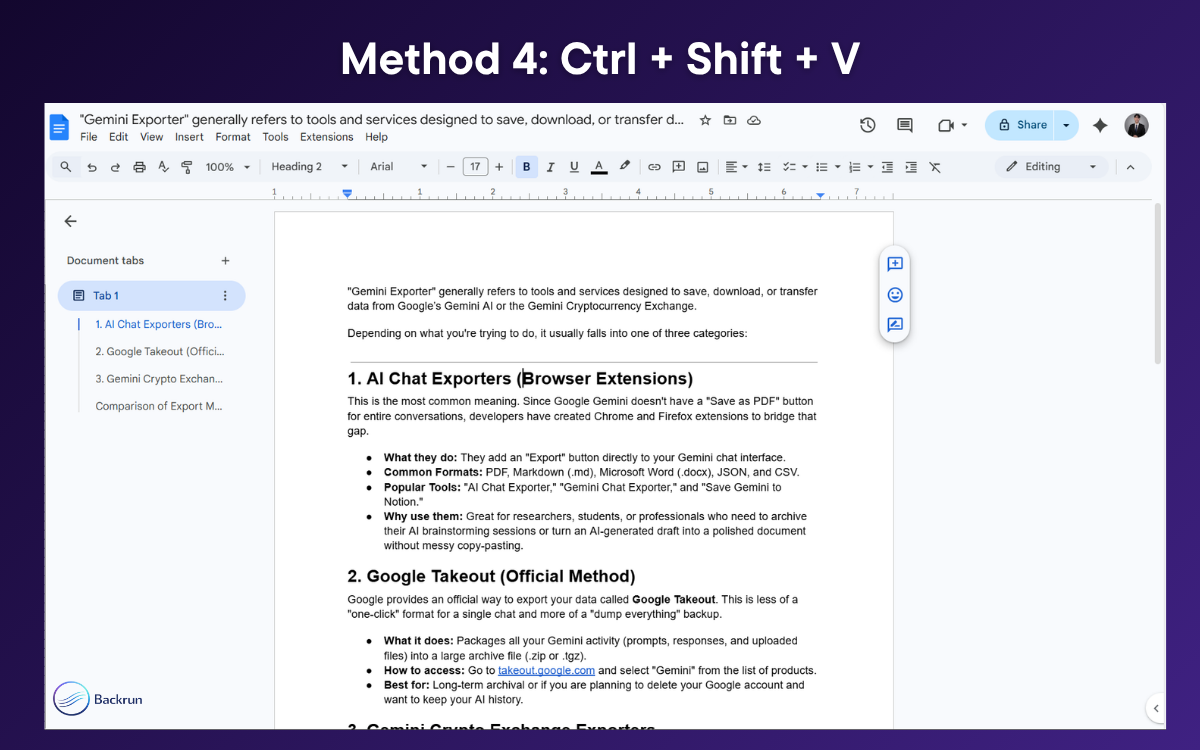
If you try a standard copy-paste, you bring over invisible HTML artifacts (weird gray backgrounds, conflicting font styles). To strip these out, force a plain text paste:
Windows:
Ctrl+Shift+VMac:
Cmd+Shift+V
This strips Gemini’s HTML and inherits your document’s native styles. The obvious trade-off is that you lose everything else. Tables become a jumbled line of text, and code blocks lose their structure. Use this strictly as a fallback for simple prose.
5. Print to PDF (Ctrl+P / Cmd+P)
Best for: A desperate, quick snapshot for personal reference.
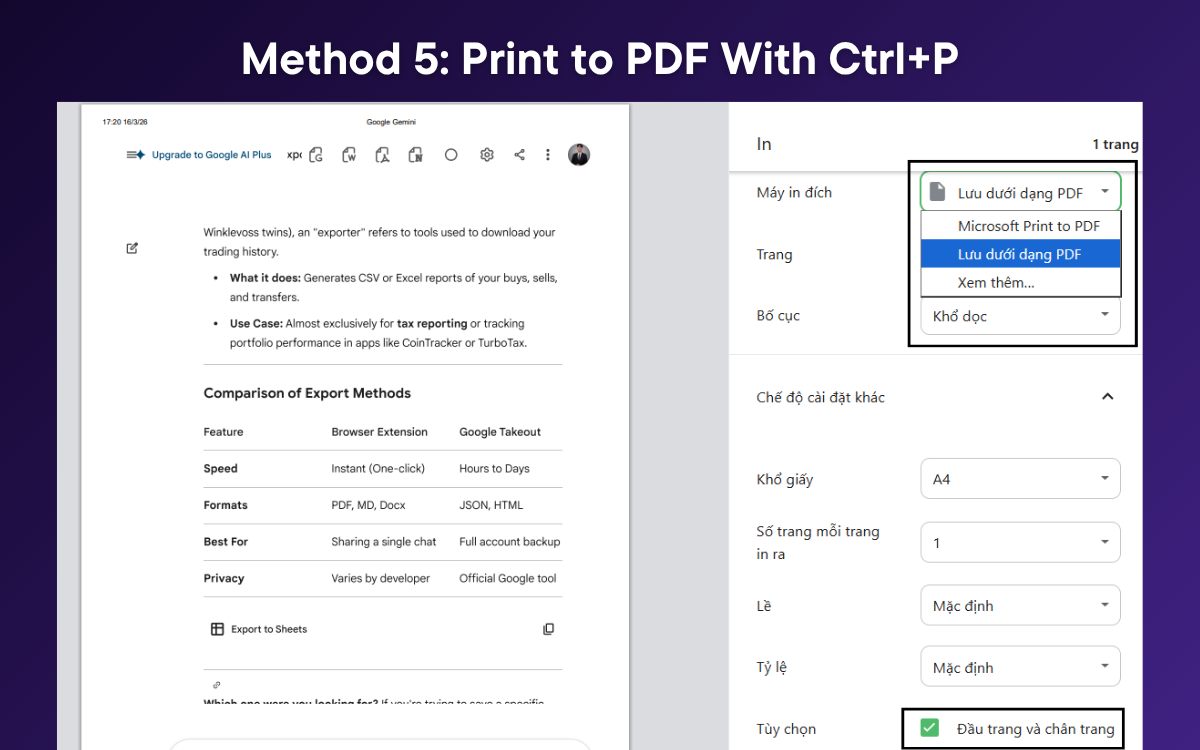
You can always just use your browser's native print-to-PDF function. It's instant, but let's be honest: the output is ugly.
It basically takes a screenshot of the webpage. You’ll get the navigation bars, input fields, and UI elements baked into your document. Worse, long code blocks often get sliced in half by page breaks. It’s not a professional workflow, but it works in a pinch.
6. Google Takeout (Full Archive)
Best for: Compliance backups or account deletion.
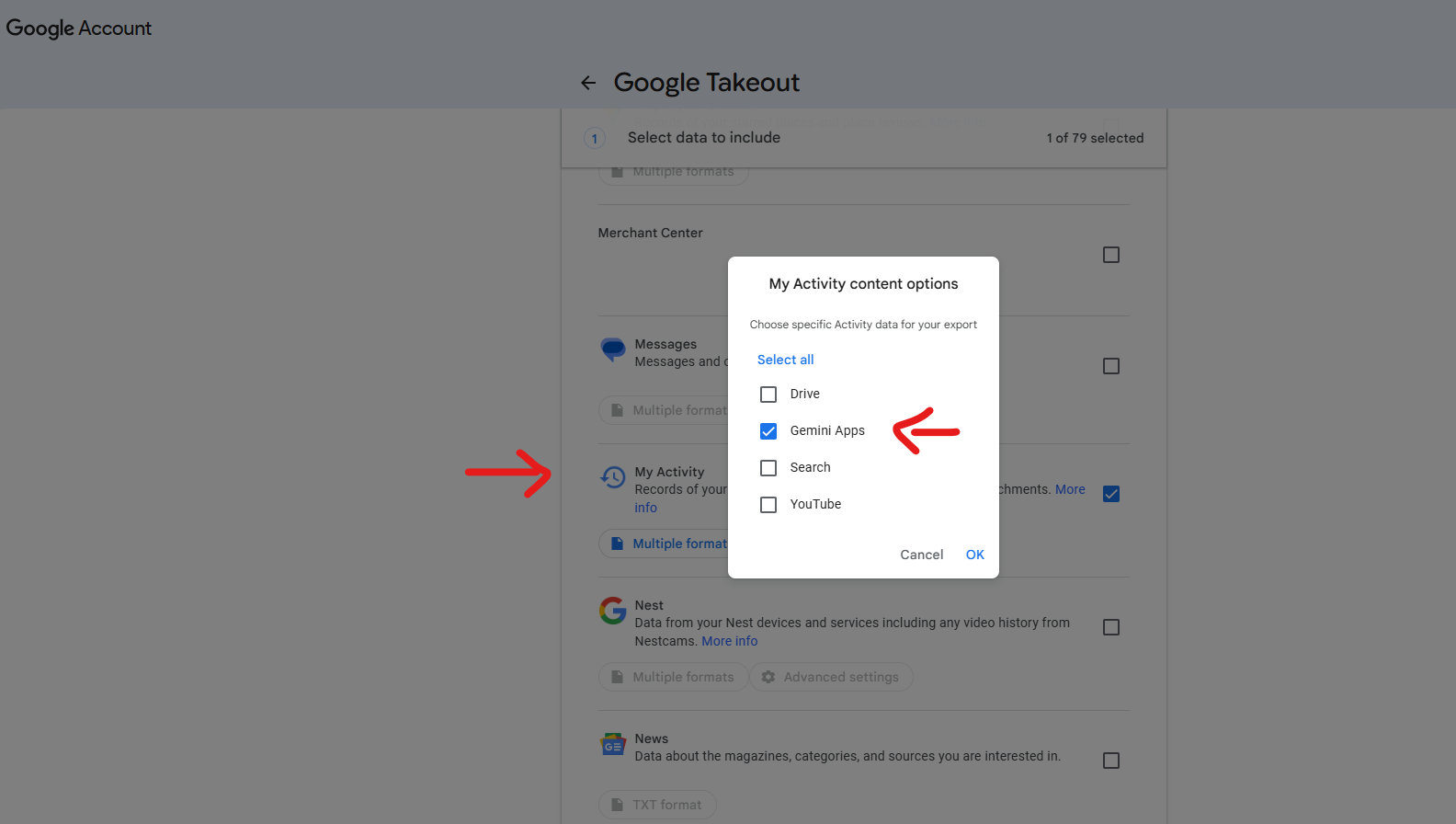
To download your entire Gemini conversation history, you can use Google Takeout. Here is the exact step-by-step process:
Go to takeout.google.com
Click Deselect all at the top of the page.
Scroll down and check the box for My Activity.
Click on the All activity data included button.
In the pop-up menu, click Deselect all again.
Finally, check only Gemini Apps, save your selection, and proceed to export.
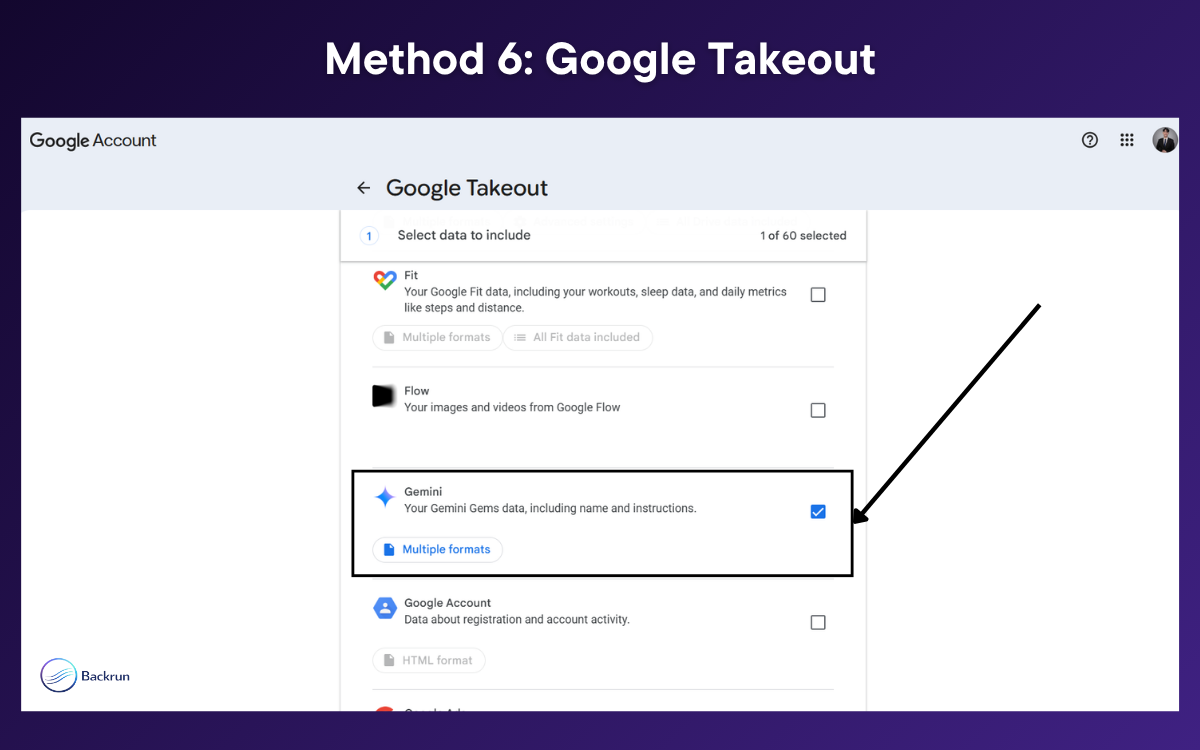
Google will email you a ZIP file containing raw JSON or HTML files. It is comprehensive, but it is not human-readable without running it through a secondary parser. This is strictly for bulk archiving, not daily productivity.
These are the 6 best ways to export your Gemini chats in 2026.
The right method depends entirely on your workflow. For quick, plain-text snippets, Google's built-in options or a simple copy-paste work just fine. However, if you regularly work with code blocks, tables, or complex LaTeX math formulas, relying on a dedicated tool like the Gemini Exporter Extension will save you hours of manual formatting.
Pick the method that best fits your needs, and stop letting broken formatting slow down your productivity!

Join Quy on Peerlist!
Join amazing folks like Quy and thousands of other builders on Peerlist.
1
6
1