

How I Convert ChatGPT to PDF Without Breaking Formatting
Practical ways to save ChatGPT outputs as clean PDFs without broken formatting or extra clutter
I save ChatGPT outputs as PDFs pretty often. Sometimes it is a research summary I want to keep. Sometimes it is a draft I need to send to a teammate. Sometimes it is just a useful answer that should not disappear inside a long chat.
The annoying part is that exporting ChatGPT to PDF is not always as clean as it sounds. Tables can break, code blocks can spill across pages, and browser print can pull in extra interface clutter that makes the file look rough.
After trying a few different approaches, I found that the best method depends on what I am saving. These are the four methods I actually use, depending on whether I need the full conversation, a polished document, or just a quick copy.
1. Use browser print
Browser print is the fallback method I use when I want a quick personal copy and do not want to install anything or spend time cleaning the layout first. It is simple, fast, and good enough for short chats or plain-text answers that I only need for reference.
Use it this way:
Open the ChatGPT conversation.
Press Ctrl + P on Windows or Cmd + P on Mac.
Choose Save as PDF.
Adjust the page settings if needed.
Check the preview and save the file.
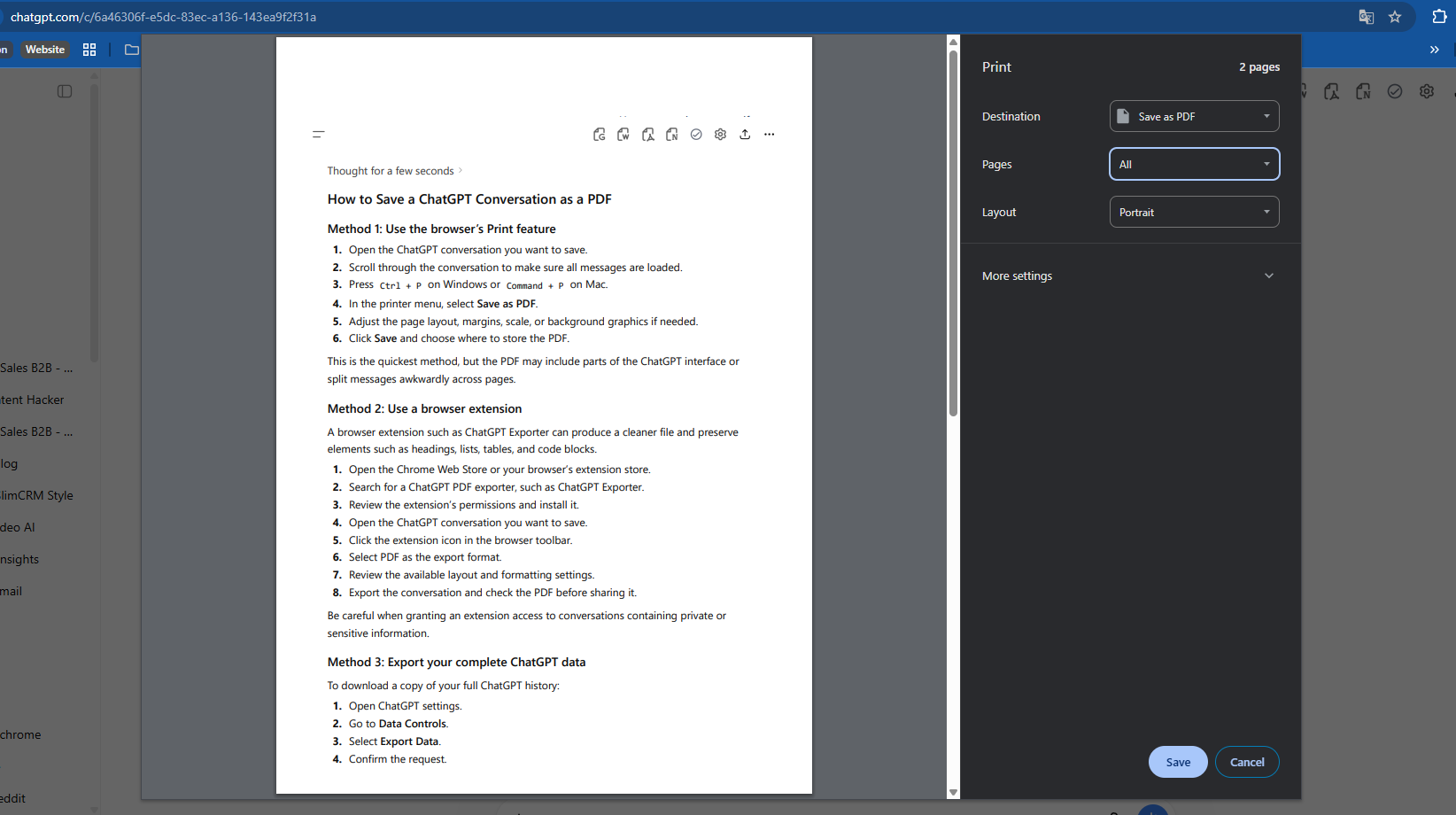
The advantage here is speed. The downside is that the PDF can include sidebars, buttons, odd margins, and page breaks that make the result look less polished. I use this when I need a personal snapshot, not when I need something formal.
If the conversation is short and the formatting is simple, browser print is usually enough. If the file needs to look clean, I move to a different method.
2. Use a browser extension
Using a browser extension is usually the cleanest way to save a full ChatGPT conversation as PDF, especially when the chat includes lists, tables, code blocks, or several follow-up prompts that still matter in the final file. It works better than a quick print because the extension reads the conversation structure instead of just capturing whatever is visible on the screen.
There are quite a few tools for this. Some common examples are AI Chat Exporter, ChatGPT Power, and similar export tools.
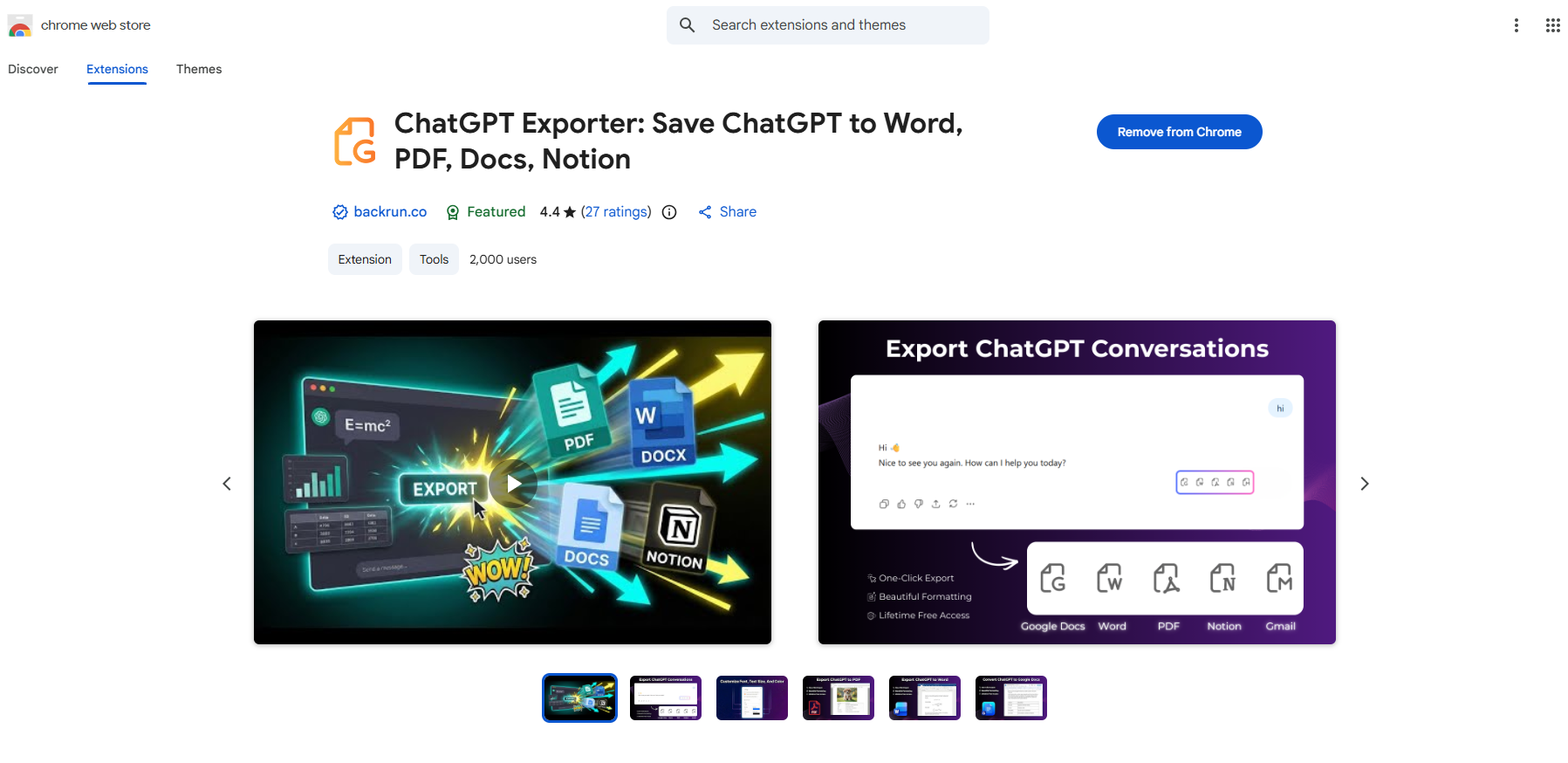
The one I use in this guide is ChatGPT Exporter, because it is straightforward and works well for turning longer conversations into readable PDF files.
Use it this way:
Install ChatGPT Exporter from your browser’s extension store.
Open the ChatGPT conversation that contains the content you want to save.
Click the extension icon from your browser toolbar, or open it from the chat page if the tool adds a button there.
Choose PDF as the output format.
Export the file and open it once before sending it to anyone else.
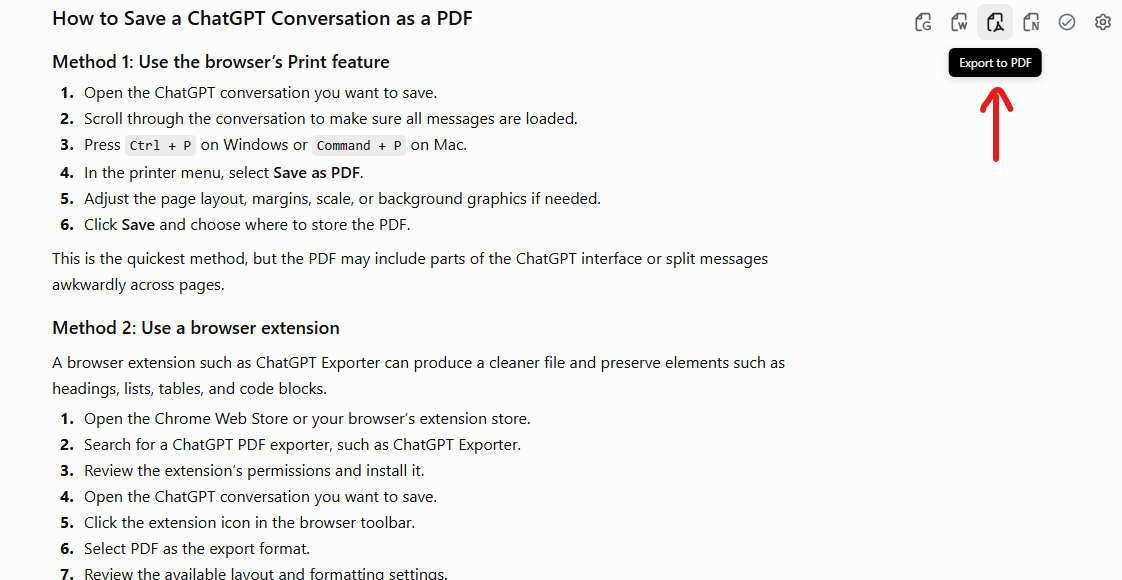
This is usually the method I trust most when the conversation itself is the document. The main thing to keep in mind is permissions. Any browser extension that can read a ChatGPT page should be used carefully, especially if the conversation contains sensitive or client-related information.
3. Ask ChatGPT to create the PDF file
When the final answer already looks like a finished document, I usually skip the full chat and ask ChatGPT to generate the PDF directly. This works well for checklists, summaries, SOPs, reports, handouts, or anything that already reads like something I would actually share.
A practical prompt is: Create a clean PDF from the final answer above. Keep the headings, bullet points, tables, and notes readable. Use simple page breaks and a professional layout.
After the file appears, I usually do a quick review before I download or share it. I mainly look for three things. Headings should stay with the paragraph below them. Tables should still fit the page. Code blocks should wrap cleanly instead of breaking in awkward places.
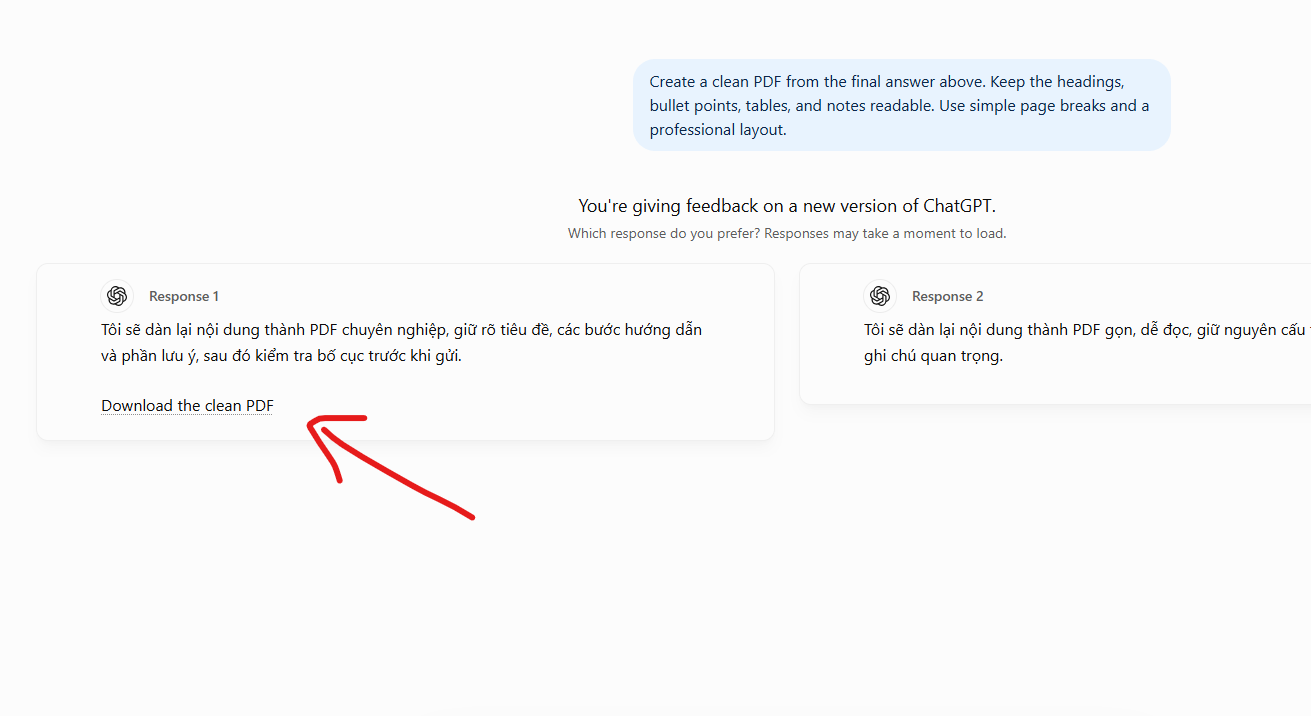
This is one of the fastest ChatGPT to PDF methods when the answer is already finished. It is less useful when the back-and-forth discussion matters, because in that case I usually need the conversation, not just the final output.
4. Use Google Docs or Word when the content needs cleanup
When I want the PDF to look deliberate and shareable, I usually copy the content into Google Docs or Word first. This takes longer, but it gives me far more control over headings, margins, spacing, page breaks, tables, and the overall reading experience.
Use it this way:
Copy the final answer from ChatGPT.
Paste it into Google Docs or Word.
Clean up the formatting before exporting anything.
Fix the headings, spacing, tables, and page breaks.
Add a title or any final edits if needed.
Export the finished version as PDF.
This is the method I use most when the output is going to a teammate, a client, or anyone else who expects a proper document instead of a raw chat export. It is slower than the other options, but it usually produces the best-looking result.
If presentation matters, this extra step is worth it. A direct export may be faster, but a cleaned-up document is usually much easier to read and share.
Final thoughts
The hard part of converting ChatGPT to PDF is not creating the file. The hard part is keeping the result readable and clean enough for the way you plan to use it.
If I need a quick copy, browser print is fine. If I need the whole conversation, I use an exporter. If I only need the final answer, I ask ChatGPT to turn it into a PDF. And if the document is going to be shared more widely, I clean it up first in Google Docs or Word.
That simple distinction has made the process much more reliable for me.

Join Quy on Peerlist!
Join amazing folks like Quy and thousands of other builders on Peerlist.