

Unlocking Power: How to Connect MongoDB MCP and Gemini CLI in Minutes
Imagine being able to control your MongoDB MCP with just a few simple commands, right from your terminal. With the Gemini CLI, this is not just possible — it’s effortless.

Whether you’re a developer looking to automate your database workflows or a data enthusiast eager to streamline your operations, connecting MongoDB MCP with Gemini CLI opens up a world of possibilities.
In this guide, I’ll walk you through the step-by-step process to make this powerful connection. No jargon, no fuss — just a clear path to integrating two cutting-edge tools. By the end, you’ll be ready to manage your MongoDB resources with confidence and speed, all from the comfort of your command line.
The first step is to install the geminiCLI to our system
Follow this link to complete instalation guid : https://github.com/google-gemini/gemini-cli/blob/main/README.md
Prerequisites
Node.js (version 18 or later) must be installed on your system. You can check if Node.js is installed by running:
node -vInstall Gemini CLI
npm install -g @google/gemini-cliAfter globally installing gemini to your system type gemini in cmd

After setting your color theme and signing in to your account with Gemini, you can see something like this…
Set up MongoDB MCP
What is MongoDB MCP?
The MongoDB Model Context Protocol (MCP) Server is a powerful bridge that enables Large Language Models (LLMs) like Gemini to interact directly with MongoDB databases. This server provides a standardized interface for database operations, making it possible for AI assistants to query, analyze, and manipulate your MongoDB data intelligently.
Install globally using NPM
npm install -g mcp-mongo-serverConnect MongoDB MCP With Gemini CLI
As of now, you have installed both gemini CLI and mcp server of mongoDB in your local system.
Now let’s connect both, and we can use your collections data with Gemini directly
For this, you first go to the .gemini folder in your local directory. generally the path for this should be in C:\Users\user\.gemini inside this there will be file called settings.json edit the file as follows
"mcpServers": {
    "mongodb-env": {
      "command": "npx",
      "args": [
        "-y",
        "mcp-mongo-server"
      ],
      "env": {
        "MCP_MONGODB_URI":  "mongodb://127.0.0.1:27017/youDataBase",
        "MCP_MONGODB_READONLY": "true"
      }
    }
  }
Paste this JSON inside the settings.json
Now open cmd type gemini, then give the command /mcp
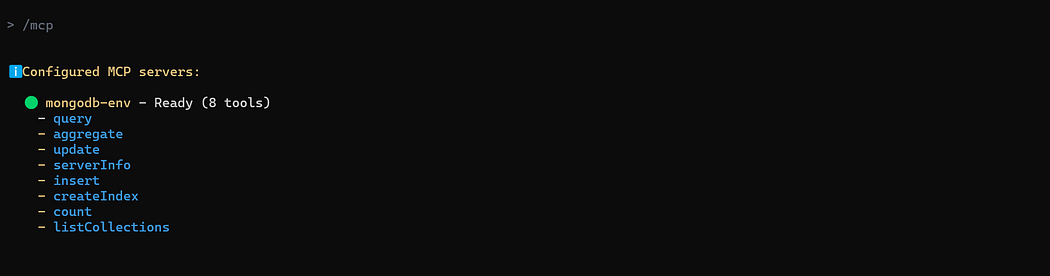
Now it will give an option like this. You can now perform this MongoDB operation using GeminiCLI on the database that you mentioned in the settings.json.
The MongoDB MCP Server provides a powerful and secure way to connect your MongoDB databases with AI assistants. By following the configuration steps and best practices outlined above, you can enable intelligent database interactions while maintaining security and performance. Whether you’re using it for data analysis, content generation, or automated database operations, this tool opens up new possibilities for AI-powered database management.
Remember to always prioritize security by using read-only mode for production environments and storing sensitive connection information in environment variables rather than configuration files.

Join Salman on Peerlist!
Join amazing folks like Salman and thousands of other builders on Peerlist.
0
16
1