

Beginner's Guide to Git: Key Basics and Commands
Master the Basics of Version Control and Collaborate with Confidence
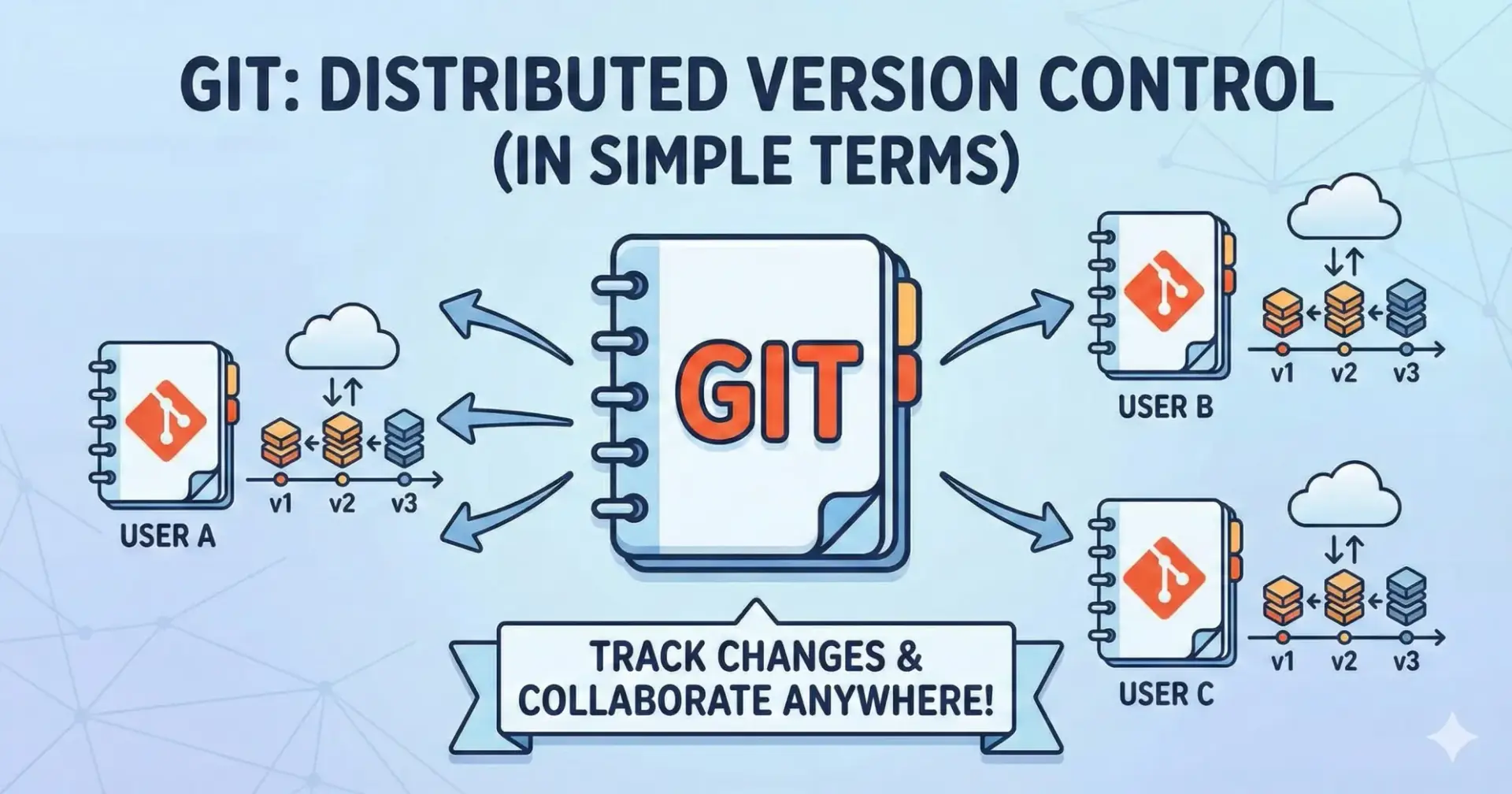
Git is a Distributed VSC(Version Control System).In Simple terms ,Git is a tool that tracks changes in your computer files and coordinates work on those files among multiple people. It is primarily used for source code management in software development, but it can be used to track changes in any set of files.
Why Git is Used?
Git is used primarily because it provides a safety net for developers and makes teamwork possible.
Tracks History: It records every change made to the code, allowing you to undo mistakes and revert to previous versions instantly.
Enables Collaboration: It allows multiple developers to work on the same project simultaneously without overwriting each other's work.
Safe Experimentation: It lets you create "branches" to test new features safely without breaking the main working code.
Distributed Backup: It ensures every developer has a full copy of the project history, acting as a backup if the central server fails.
Accountability: It identifies exactly who changed which line of code and when, making it easier to track down bugs.
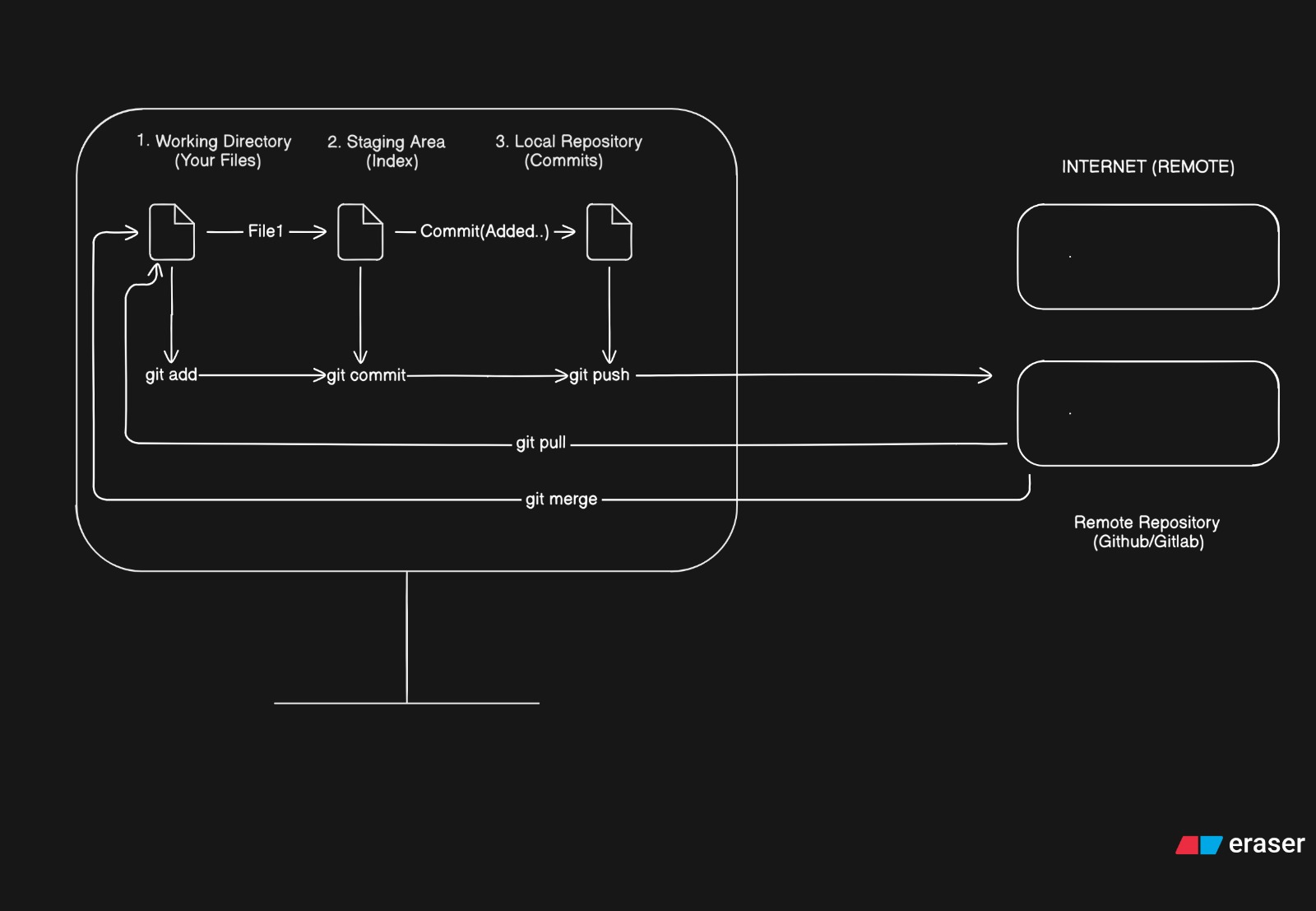
Explanation of Working :
Working Directory → Staging Area (
git add) You edit a file. It is currently "Unstaged." You usegit addto tell Git, "I want to include this specific change in my code base."Staging Area → Local Repository (
git commit) You take the files sitting in the Staging Area and seal them into a permanent a commit on your own computer.Local Repository → Remote Repository (
git push) You upload your new commits from your computer to the server like GitHub.Remote Repository → Working Directory (
git pull) You grab changes from the server and merge them directly into your current files to get up to date.
Common Git Commands
1. Setup & Initialization
git config --global user.name "Name": Sets the name attached to your commits.git config --global user.email "email": Sets the email attached to your commits.git init: Initializes a new Git repository in your current folder.git clone [url]: Downloads a project and its entire history from the internet.
2. Stage & Snapshot (Daily Routine)
git status: Shows modified files in your working directory and lists staged files. (Run this often!)git add [file]: Adds a file to the staging area (preparing it for commit).git add .: Adds all modified files to the staging area.git commit -m "[message]": Records the staged changes as a new commit (snapshot) with a descriptive message.
3. Branching & Merging
git branch: Lists all local branches.git branch [branch-name]: Creates a new branch.git checkout [branch-name]: Switches to the specified branch.Newer command:
git switch [branch-name]
git checkout -b [branch-name]: Creates a new branch and switches to it immediately.git merge [branch-name]: Combines the specified branch’s history into your current branch.
4. Inspection & Comparison
git log: Shows the commit history for the currently active branch.git log --oneline: Shows a simplified log (one line per commit).git diff: Shows unstaged changes between your index and working directory.
5. Sharing & Updating
git remote add origin [url]: Connects your local repo to a remote server (like GitHub).git push origin [branch]: Uploads your local branch commits to the remote repository.git pull: Fetches changes from the remote server and merges them into your current branch.git fetch: Downloads changes from the remote server but does not merge them (safe way to check updates).
6. Temporary Fixes
git stash: Temporarily shelves (saves) changes you aren't ready to commit so you can switch branches.git stash pop: Restores the most recently stashed changes.

Join Suraj on Peerlist!
Join amazing folks like Suraj and thousands of other builders on Peerlist.
0
8
1