

HTML to Figma — Copy Any Website as Editable Layers (Free Extension)
Stop tracing screenshots. This free Chrome extension pastes your live site directly into Figma as fully editable layers.
There's a workflow problem that every designer and developer has quietly accepted as "just how it is."
You're iterating on a design. You need to reference the live site maybe to redesign a section, maybe to hand something off, maybe to mock up a new idea on top of what already exists. So you take a screenshot. Crop it. Import it into Figma. And now you're staring at a flat image you can't actually work with.
That's not a design workflow. That's a workaround.
Why Converting HTML to Figma Changes Everything
Screenshots are dead ends. You can look at them. You can draw over them. But the moment you want to move a button, change a headline, or shift a layout you're rebuilding from scratch.
The disconnect between "what's live in production" and "what's in Figma" creates real friction:
Developers spend time recreating components that already exist
Designers work from outdated references that don't match the actual site
Handoffs get messy because the source of truth keeps splitting
There had to be a better way to get a webpage into Figma as actual editable layers, not a flat image.
Introducing: HTML to Figma Extension (Free Chrome Extension)
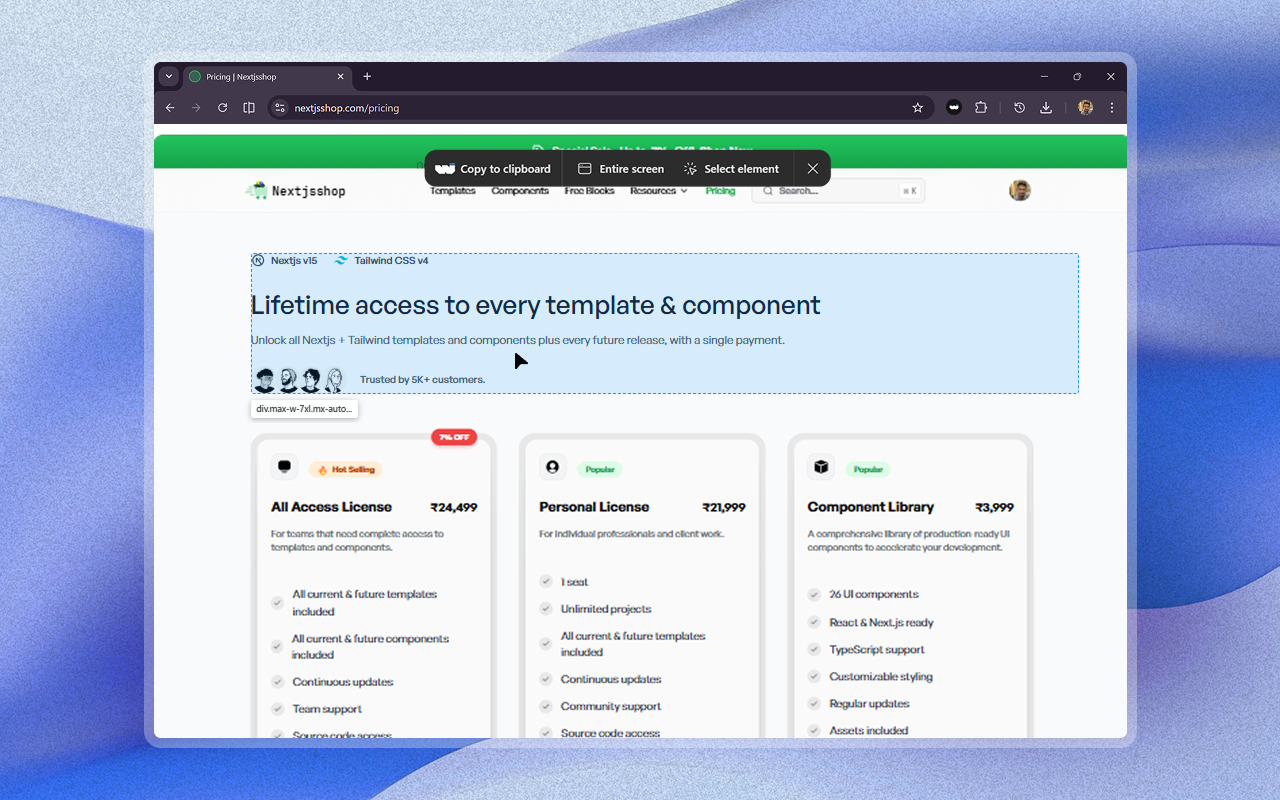
The HTML to Figma Extension is a free Chrome extension that does exactly what the name says it converts any live webpage into fully editable Figma layers in one click.
You visit any webpage, click the extension, and your live site gets copied directly into Figma. Text is text. Boxes are boxes. Everything is selectable, moveable, and editable not a flattened screenshot.
→ Install HTML to Figma free on Chrome Web Store
→ Learn more at webinspoo.com/html-to-figma-extension
How to Convert a Webpage to Figma Layers
Using the HTML to Figma Chrome extension is straightforward:
Install the extension from the Chrome Web Store (free, no account needed)
Open any webpage you want to import into Figma
Click the HTML to Figma extension icon
Open Figma — your site is already there as editable layers
No configuration. No API keys. No paid subscription. Just install and use.
Who Should Use the HTML to Figma Extension
For designers pull any live website into Figma and immediately start redesigning it. Change copy, rearrange sections, swap components. You're working on top of production instead of approximating it from a screenshot.
For developers when a designer asks "can you show me what the current state looks like in Figma?" you no longer have to spend an hour rebuilding it by hand. One click and it's done.
For indie builders and founders you're moving fast, wearing both hats. The HTML to Figma extension closes the loop between building and designing without slowing you down.
Real Use Case: Redesigning a Pricing Page
Say you want to redesign your pricing page. The old way:
Screenshot the current page
Import the image into Figma
Trace over it manually to recreate elements
Start designing
Lose track of which version reflects the real site
With the HTML to Figma extension:
Visit your live pricing page
Click the extension
Open Figma — the actual page is there as editable layers
Start redesigning immediately
You skip the manual tracing entirely. You always know what's real because you started from it.
Completely Free — No Limits, No Account
No trial period. No "premium layers only" gate. No account required.
The HTML to Figma Extension is built and maintained as part of Webinspoo — a design inspiration gallery for SaaS and web products. The extension is a natural complement: instead of just getting inspired by great web design, now you can capture any site and work with it directly in Figma.
Frequently Asked Questions
Is the HTML to Figma extension really free? Yes completely free. No hidden tiers, no account sign-up, no expiry.
Does it work on any website? Yes. Any publicly accessible webpage can be captured and converted to Figma layers.
Do I need a paid Figma plan? No. It works with Figma's free plan.
Is it the same as taking a screenshot? Not at all. Screenshots are flat images. This extension imports your webpage as fully editable vector and text layers you can move, edit, and redesign every element.
Try the HTML to Figma Extension
If you've ever taken a screenshot of a live site just to bring it into Figma, this extension is built for you.
→ Install HTML to Figma Free on Chrome
Would love to hear how you're using it — drop a comment below.

Join Taher on Peerlist!
Join amazing folks like Taher and thousands of other builders on Peerlist.
0
2
0