

Best MP4 to Text Converter in 2026: I Tested 3 Popular Tools
A hands-on comparison of 3 tools to convert MP4 to text with real test results
Introduction
Today, a large amount of information exists in video form. However, in practical use, videos are not very convenient for searching or further processing. For example, when trying to quickly locate a specific section, take notes, or organize a video into a document, repeatedly scrubbing through the timeline can be inefficient. In comparison, converting video into text is often more practical—text is searchable, easy to copy, and much easier to organize and reuse.
A MP4 to text converter is a type of tool designed to solve this problem. It can automatically convert speech in videos into text, helping improve information processing efficiency. Whether it is students organizing class notes, content creators repurposing materials, or professionals documenting meetings, these tools can be useful in many scenarios.
In this article, I tested three commonly used tools using the same TED talk as a sample. The focus is on comparing their real-world performance in the convert mp4 to text scenario. The evaluation covers several aspects, including accuracy, processing speed, pricing, and ease of use, with the goal of reflecting a realistic usage experience.
Testing Methodology
For this test, I used this TED Talk: Why 30 is not the new 20. This video contains a meaningful amount of content and is a typical single-speaker English speech, with moderate speed, clear pronunciation, and a well-structured flow.
I chose this video because it closely reflects real-world use cases, such as taking study notes or extracting key insights. It also provides a good benchmark for evaluating how different tools perform in a transcribe mp4 to text scenario, especially when handling longer content and logical structure.
During the test, I processed the same video across different tools under the same conditions and compared their performance based on five key dimensions: efficiency (speed), accuracy (quality), user experience, extended features, and cost (pricing). The goal was to reflect real usage as closely as possible and make the comparison more meaningful and reliable.
Tool Reviews: 3 Best MP4 to Text Converters Compared
Accuracy (Quality)
In terms of accuracy, I compared the transcription results of all three tools against the official transcript provided by TED. Overall, all three tools delivered stable performance, with only minor differences in details.
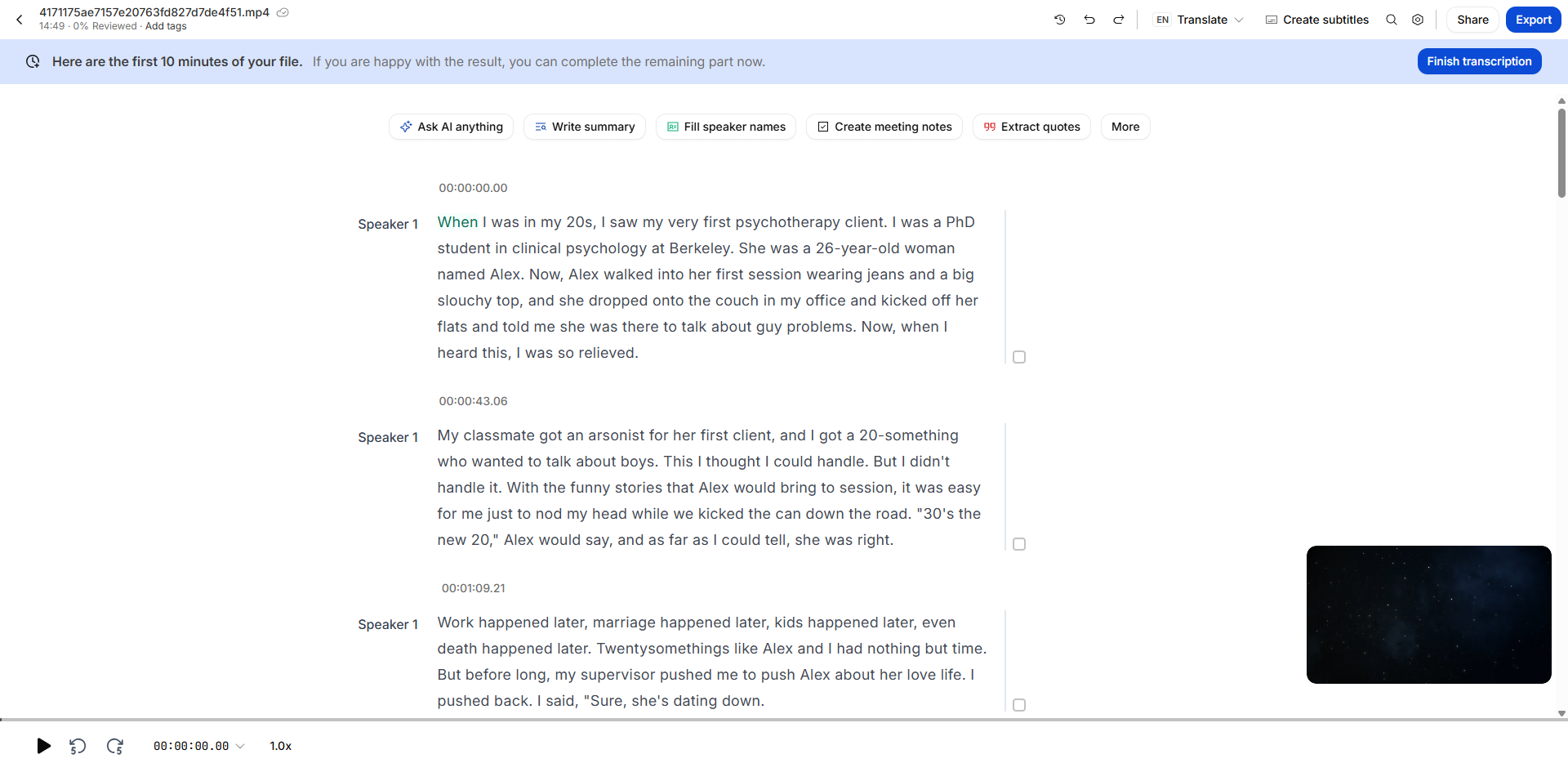
Happy Scribe demonstrated the strongest performance in accuracy, with only a single word discrepancy, which is negligible. Its timestamps were also precise, closely matching specific moments in the video, making it easy to revisit and locate content. The overall text structure was clear, although paragraph segmentation was slightly off, which did not affect usability.
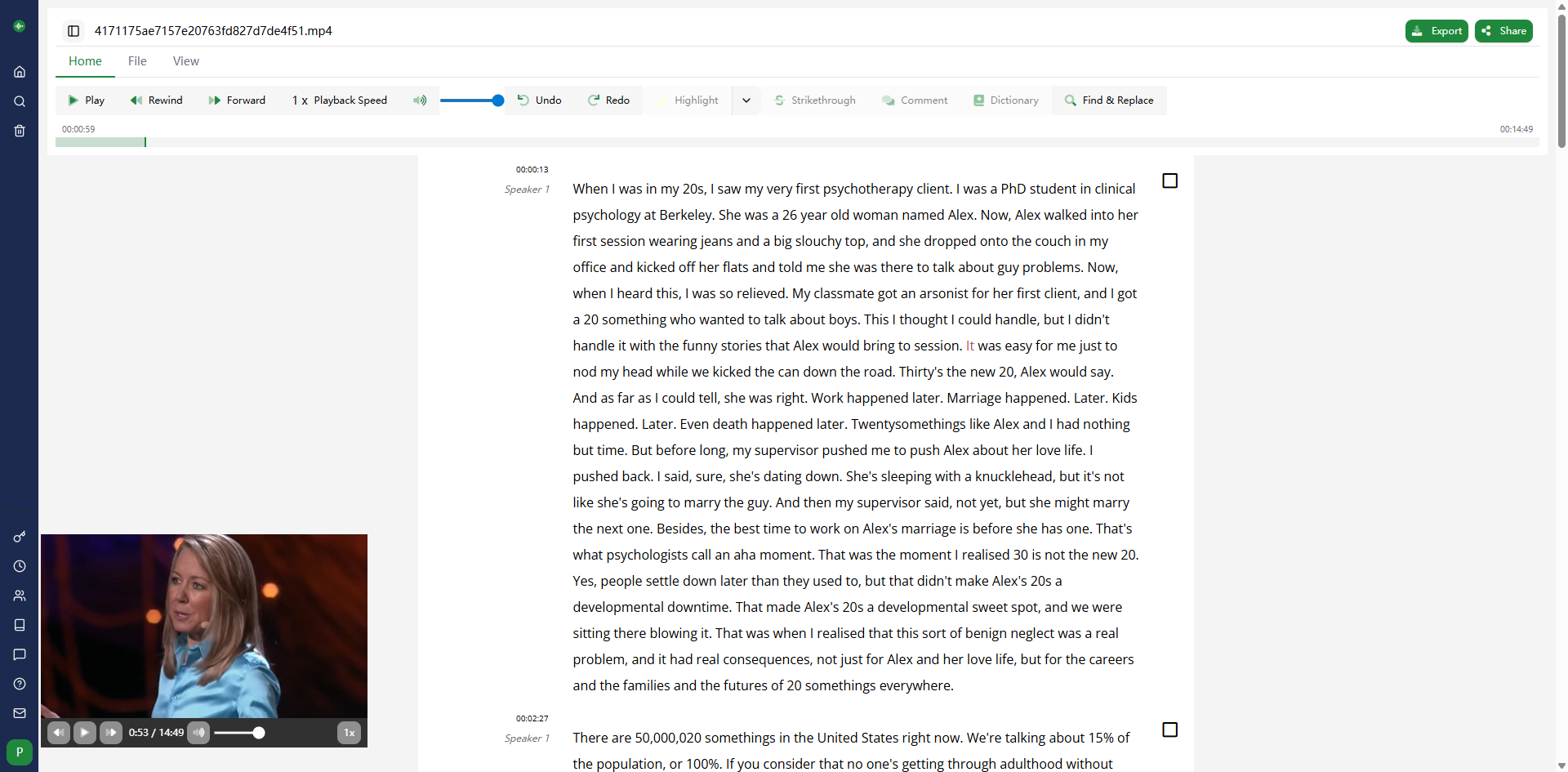
Go Transcribe also delivered high accuracy, with no obvious transcription errors. There was only a minor issue with sentence segmentation, but overall the text quality remained stable and required minimal editing. The timestamps were well-aligned with key moments in the video, making it reliable for reviewing and navigating content.
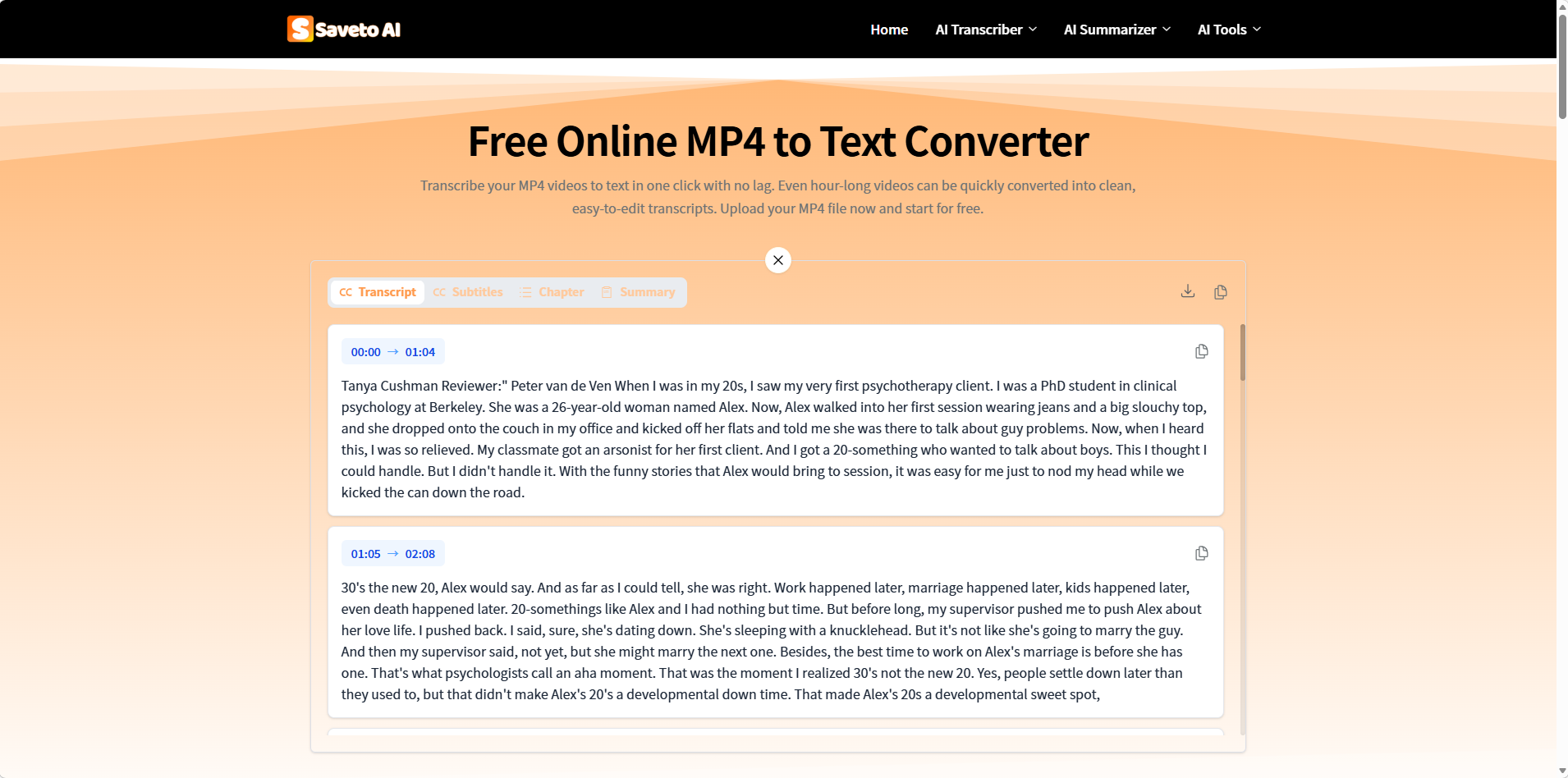
Saveto achieved a similar level of accuracy, with no significant differences compared to the other two tools. The transcription results were highly usable, with only minor issues in sentence breaks that could be easily adjusted.
Efficiency (Speed)
In terms of efficiency, all three tools were able to complete transcription relatively quickly, though processing times still varied.
Happy Scribe completed the transcription of this ~15-minute video in about 30 seconds, which is close to real-time processing. This makes it well-suited for scenarios where you need to quickly convert video to text.
Saveto also performed well, completing the transcription in around 20 seconds. In practice, it feels almost instantaneous after uploading, making it comparable in efficiency to Happy Scribe.
Go Transcribe took longer, completing the same video in about 4 minutes. While noticeably slower than the other two, it is still within an acceptable range and does not impact regular usage.
User Experience
In terms of user experience, all three tools offer relatively straightforward workflows, but there are some differences in details.
Happy Scribe requires login before use. Once logged in, you can upload or drag and drop a video to start transcription. The resulting text is well-structured and cleanly formatted, with support for basic editing features such as bold, italics, and highlights, allowing users to refine content directly within the tool. Sharing is also intuitive, with links that jump directly to specific timestamps, which is useful for collaboration and content reuse. Additionally, a video preview window in the bottom corner allows synchronized playback, making it easier to review content alongside the transcript. However, exporting is somewhat limited, as it only allows paragraph-level copying rather than full document export, requiring additional manual work if you want to create a complete document.
Go Transcribe also requires login. Its interface centers around playback and text editing. It supports playback control such as rewind, fast-forward, and speed adjustment, allowing users to review the transcript alongside the video. It also provides editing features like highlights, strikethrough, comments, and find-and-replace. Additionally, it includes a dictionary feature, which is helpful when working with English content. Overall, the experience is smooth, but it leans more toward a post-transcription editing workflow.
Saveto offers a more lightweight and streamlined workflow with a lower barrier to entry. In addition to uploading local files, it also supports transcription via video links, providing more flexibility when accessing content. After transcription, users can quickly view results and perform basic organization. The overall experience is simple and direct, making it suitable for users who want to quickly obtain text and perform light editing.
Extended Features
In terms of extended features, each tool focuses on different aspects of the workflow.
Happy Scribe offers the most comprehensive feature set. In addition to basic transcription, it supports automatic summarization, meeting notes generation, key insight extraction, subtitle creation, and timeline-based chapter segmentation. It also includes speaker identification, allowing users to clearly distinguish between different speakers in multi-person content. Overall, it is closer to an all-in-one content processing tool.
Go Transcribe focuses more on transcription and text editing. Beyond basic transcription, it provides export and sharing options, transcription quality tagging, and timestamp adjustments. It also supports speaker identification. However, it lacks deeper content processing features such as summarization or chapter generation, making it more suitable for basic transcription use cases.
Saveto takes a more practical and lightweight approach. In addition to transcription, it can generate subtitles, chapters, and content summaries, covering the most common needs in daily content processing. While the feature set is not overly complex, it is sufficient for most basic scenarios. However, it currently does not support speaker identification, so users need to manually distinguish speakers in multi-person conversations.
Pricing
In terms of pricing, the three tools adopt different strategies.
Happy Scribe offers a limited free tier, but it only supports the first 10 minutes of content. Anything beyond that requires a paid plan, which can be a limitation for longer videos. It is better suited for users who are comfortable with paid solutions.
Go Transcribe can be used for free without a clear time limit, making it a good option for users who primarily need basic transcription functionality.
Saveto also supports free usage and does not impose strict time limits, making it more flexible for everyday use.
Conclusion
Overall, there is little difference in transcription accuracy among these three tools, and all of them can meet everyday needs. The real differences lie in processing speed, feature focus, and overall workflow.
If you value a more complete feature set and stronger content processing capabilities—such as generating summaries, meeting notes, or performing deeper content analysis—Happy Scribe is a better fit. However, it comes with a paid tier that may not suit everyone.
Go Transcribe is more of a basic tool, suitable for scenarios focused on transcription and simple text editing. Its features are relatively minimal, but it stands out for being free to use.
If you are simply looking for a simple and efficient way to convert MP4 to text, quickly turn video content into text, and perform basic organization, a lightweight tool like Saveto is a more convenient and practical choice for everyday use.

Join tingmin on Peerlist!
Join amazing folks like tingmin and thousands of other builders on Peerlist.
1
2
0